
With eRoom WooCommerce addon, you can easily make your meetings ready purchasable and for sale by using the WooCommerce plugin.
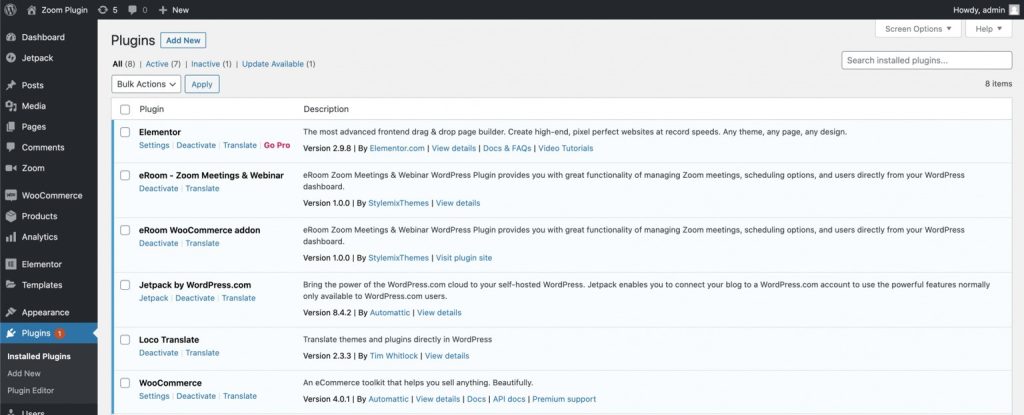
Activate the plugins first: eRoom – Zoom Meetings & Webinars, eRoom WooCommerce addon, WooCommerce.
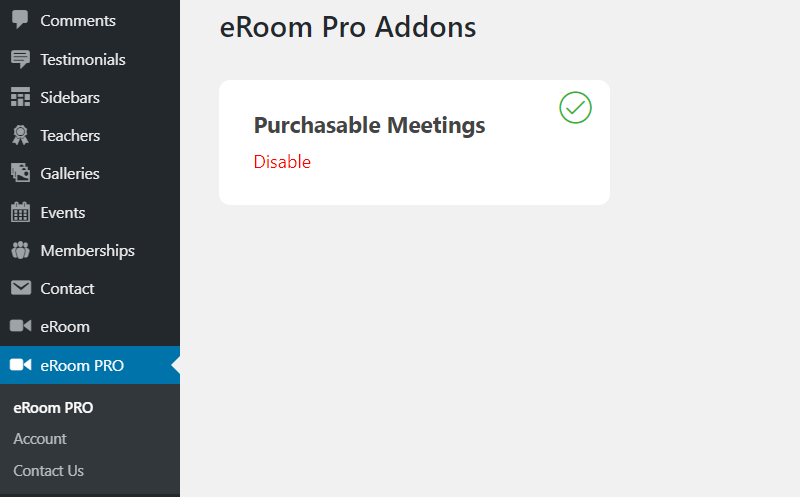
After that, you need to activate the addon Purchasable Meetings, go to the eRoom Pro menu on your dashboard panel. On the page eRoom Pro Addons you need to enable the addon.
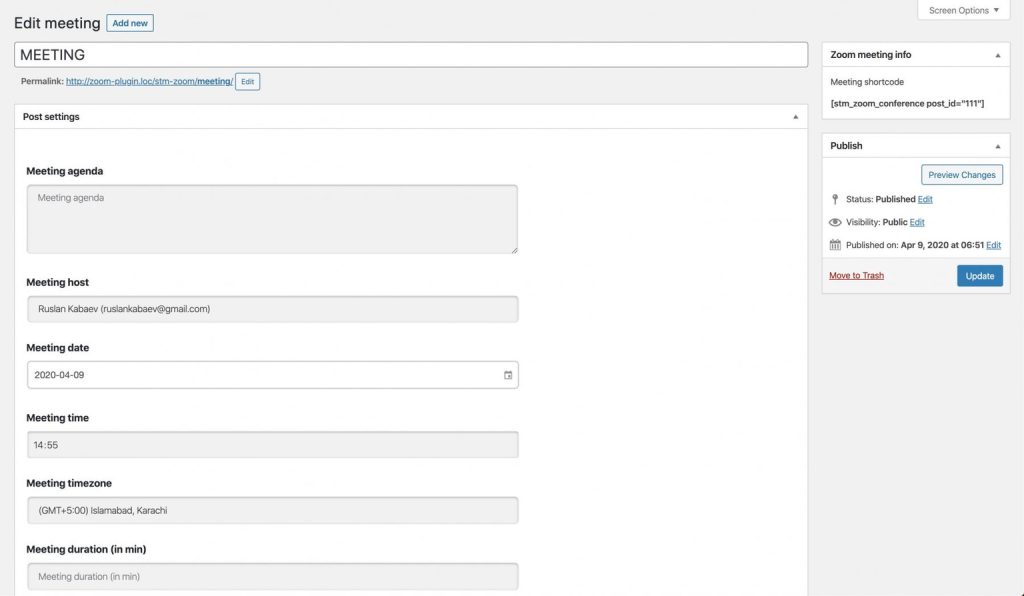
Now, go to eRoom > Zoom Meetings > Add New. Create a new meeting, fill in all the required information like the name, host, agenda, start date, and save the changes.
After that, follow to WooCommerce > Products > Add new. Here you need to create a new WooCommerce product.
Enter the title, image, and description and move to the product settings.
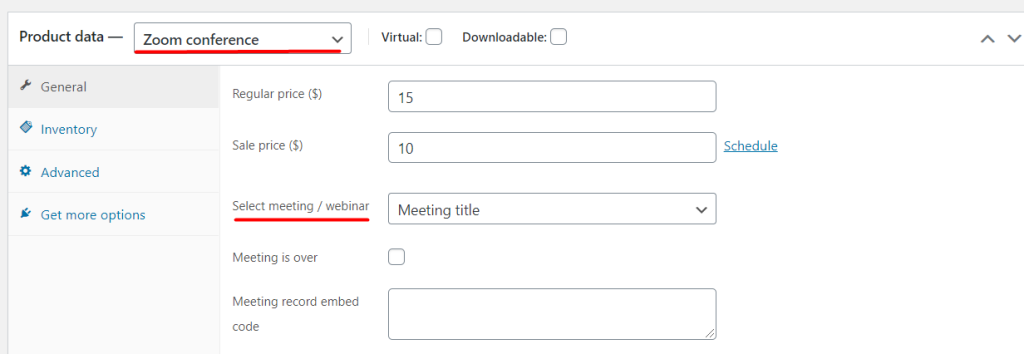
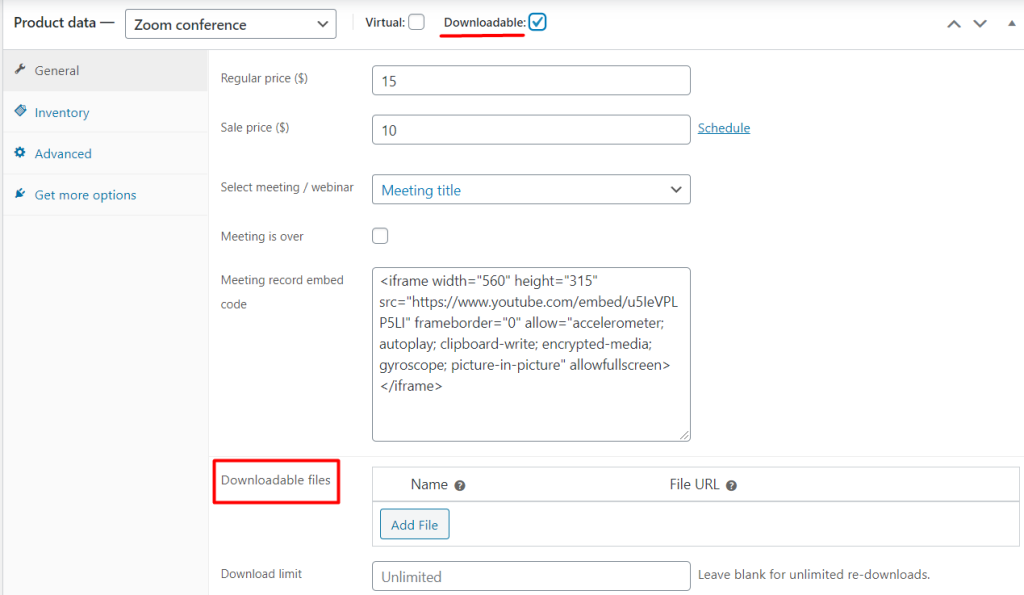
On the General section, in the Product Data select the product type as Zoom conference. Now you need to link the product to a specific meeting. Select the needed one in the Select Meeting field. Set the price for your meeting.
You can also mark the meeting as it is over. In this case, people can buy the recorded version of this. Just insert the embed code of the record file.
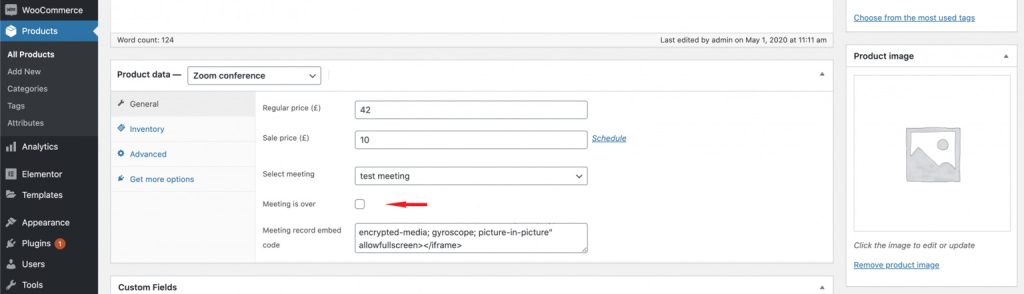
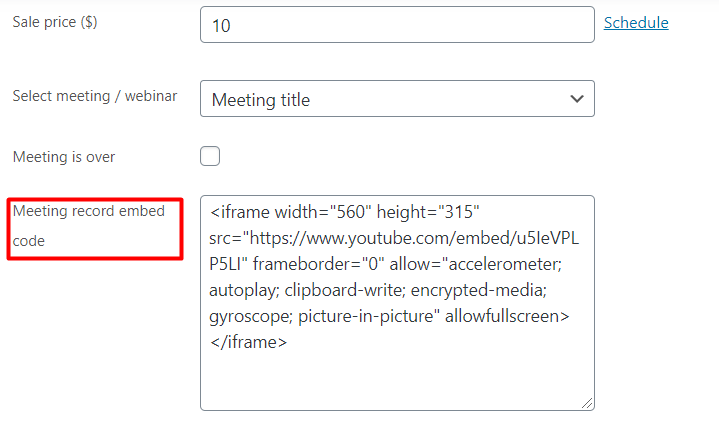
For that, you need to paste the embed code into the place “Meeting record embed code”:
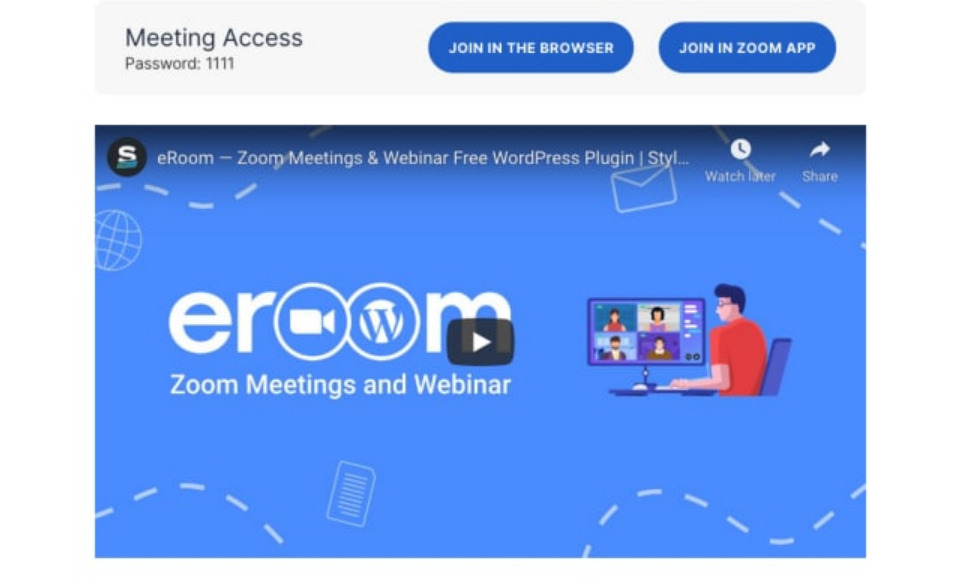
So the users can see the recorded source whenever they want after a purchase:
You can add attachable files to the product by clicking the downloadable button, then you will be able to download files.
In the frontend view, you can see the attached files below the product description:


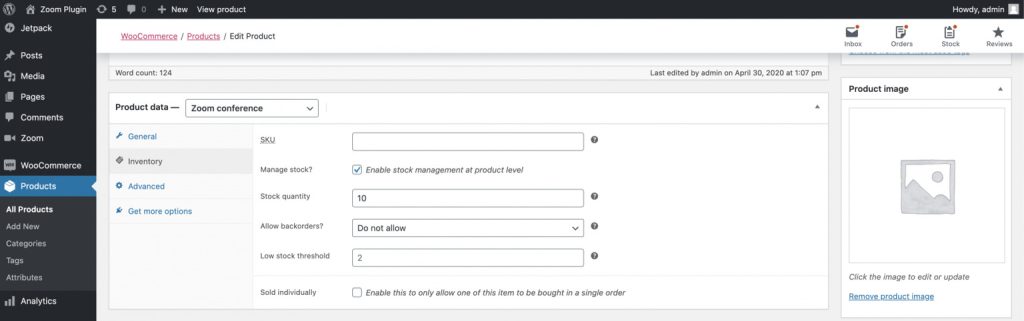
In the Inventory section, you can manage the stock.
Now your meeting is available for purchase.

In the Zoom meeting/webinar product page, you can add it to the cart by getting the information about the meeting/webinar, duration, price, sale price, date, and more.
Note that the Image (avatar) of the Speaker will be inherited from Gravatar based on the email address of the author of the webinar.
You can set up the notification, which will be sent to a participant a certain time before the start of the meetings.
When the meeting/webinar is purchased, but it has not started yet, the countdown will appear at the product banner, making it clear how long it takes for the meeting/webinar to start.

Go to eRoom > Settings > WooCommerce Addon Settings and specify the time in the space provided.
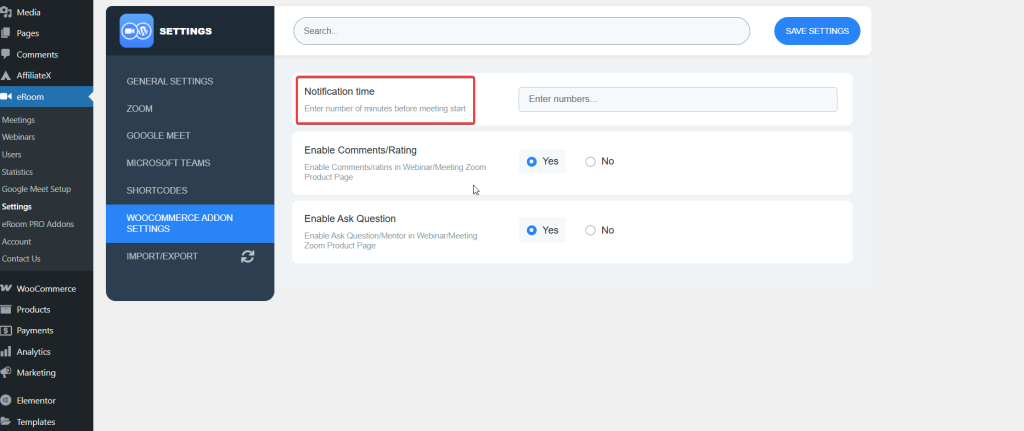
Once you set it up, participants will receive a reminder message by email about the session 10 minutes before it starts.
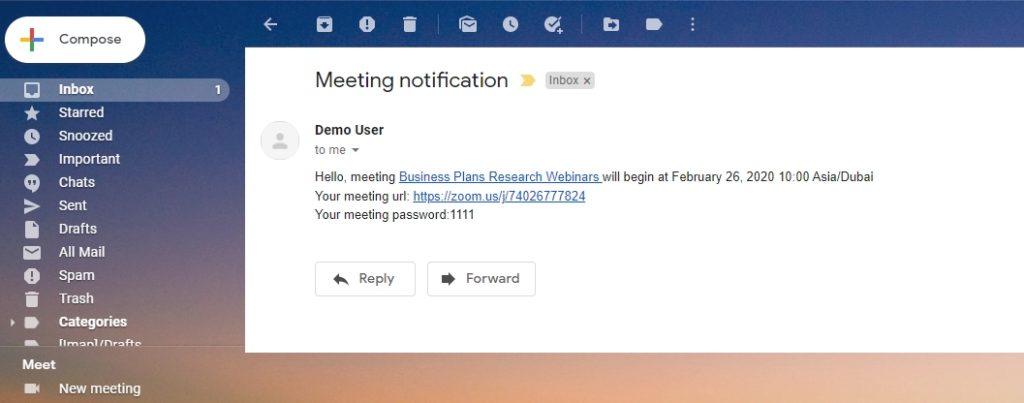
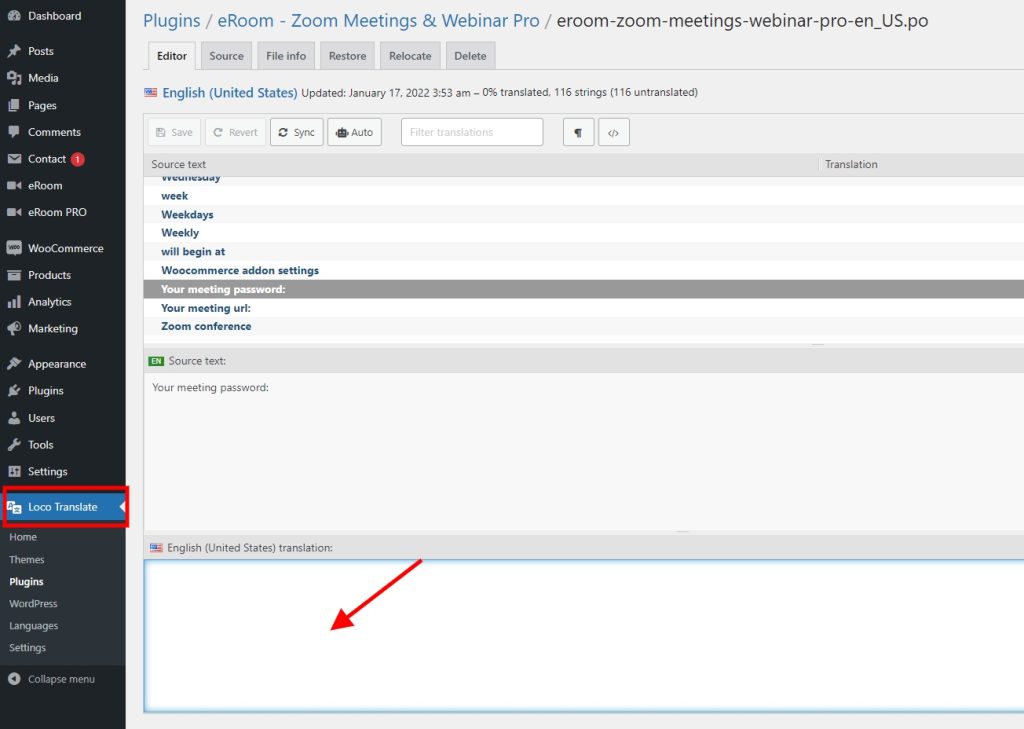
The content of the notification message can be changed with Loco Translate plugin. After installing the plugin, go to Loco Translate in Dashboard and find eRoom – Zoom Meetings & Webinar Pro plugin, there you can edit the content of the message according to your needs.