
Skip to content
  • Features
  • How it works
  • Pricing
  • FAQ’s
  • Documentation
Buy Now

Getting Started

  • Install and Activate eRoom Free & eRoom Pro
  • System Requirements
  • Configuring the plugin
  • License Activation
  • License Upgrading
  • Meeting Reports
  • Meetings Grid
  • How to Add Meetings to Page
  • How to Add Meetings
  • How to Add New Users

Zoom Integration

  • How to Obtain APIs
  • Webinars
  • Migration Wizard

Google Meet Integration

  • Google Meet Addon

Microsoft Teams Integration

  • Microsoft Team Integration

Purchasable Meeting

  • Purchasable Meetings Addon

Recurring Meeting

  • Recurring Meetings Addon

Hooks

  • Filter: eroom_date_timezone_display
View Categories
  • Documentation
  • Getting Started
  • Configuring the plugin

Configuring the plugin

With the update of the video SDK Zoom no longer supports HTTP requests. This means that now it is mandatory to have an SSL certificate on the site and SharedArrayBuffer connected on the server so that the Join in browser button works correctly. Therefore, it is preferable to use HTTPS requests.

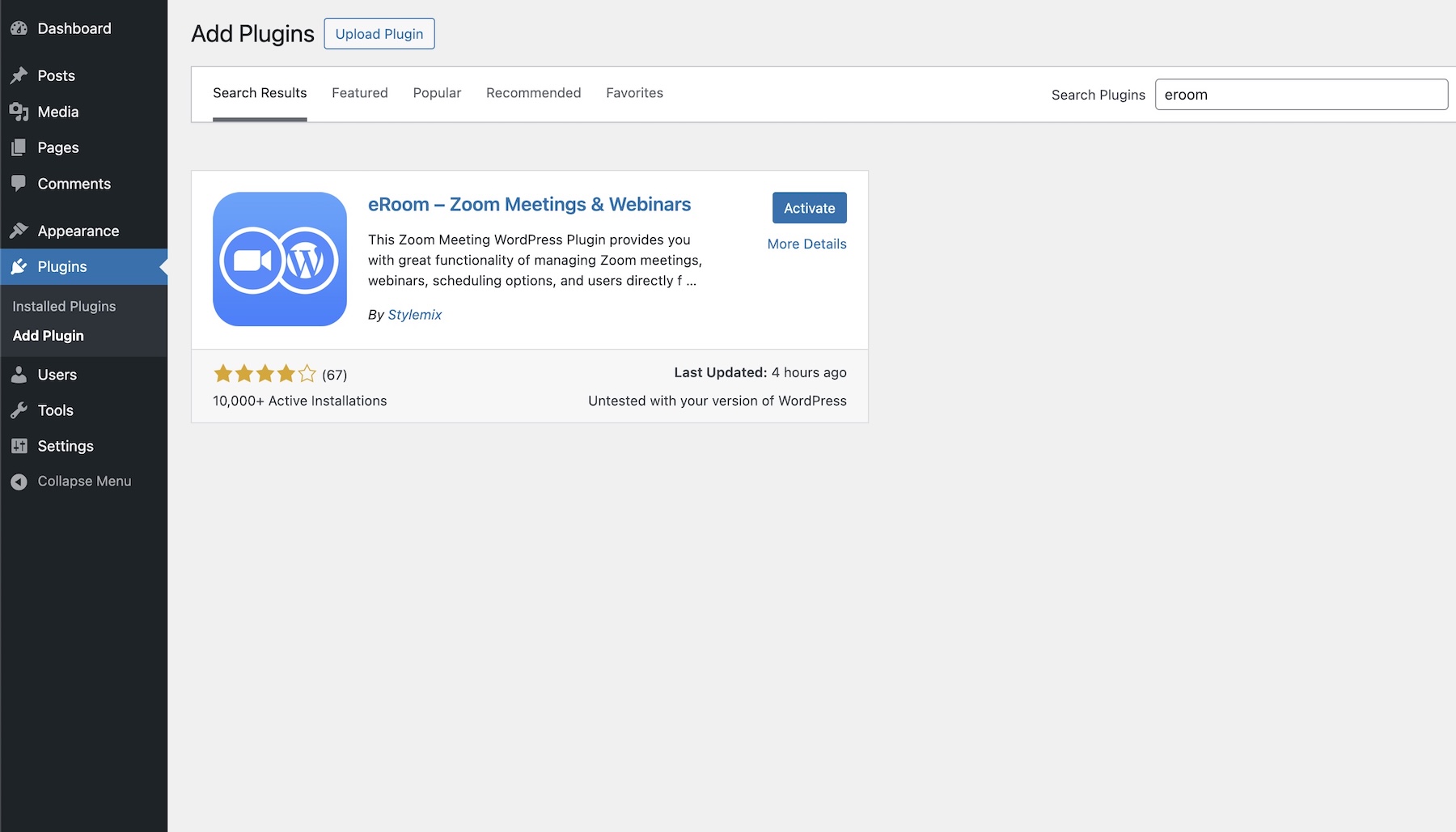
To install the plugin, first of all, you need to go to Plugins > Add New. In the search field enter eRoom – Zoom Meetings & Webinars and click on Install. Once the installation is finished, Activate the plugin.
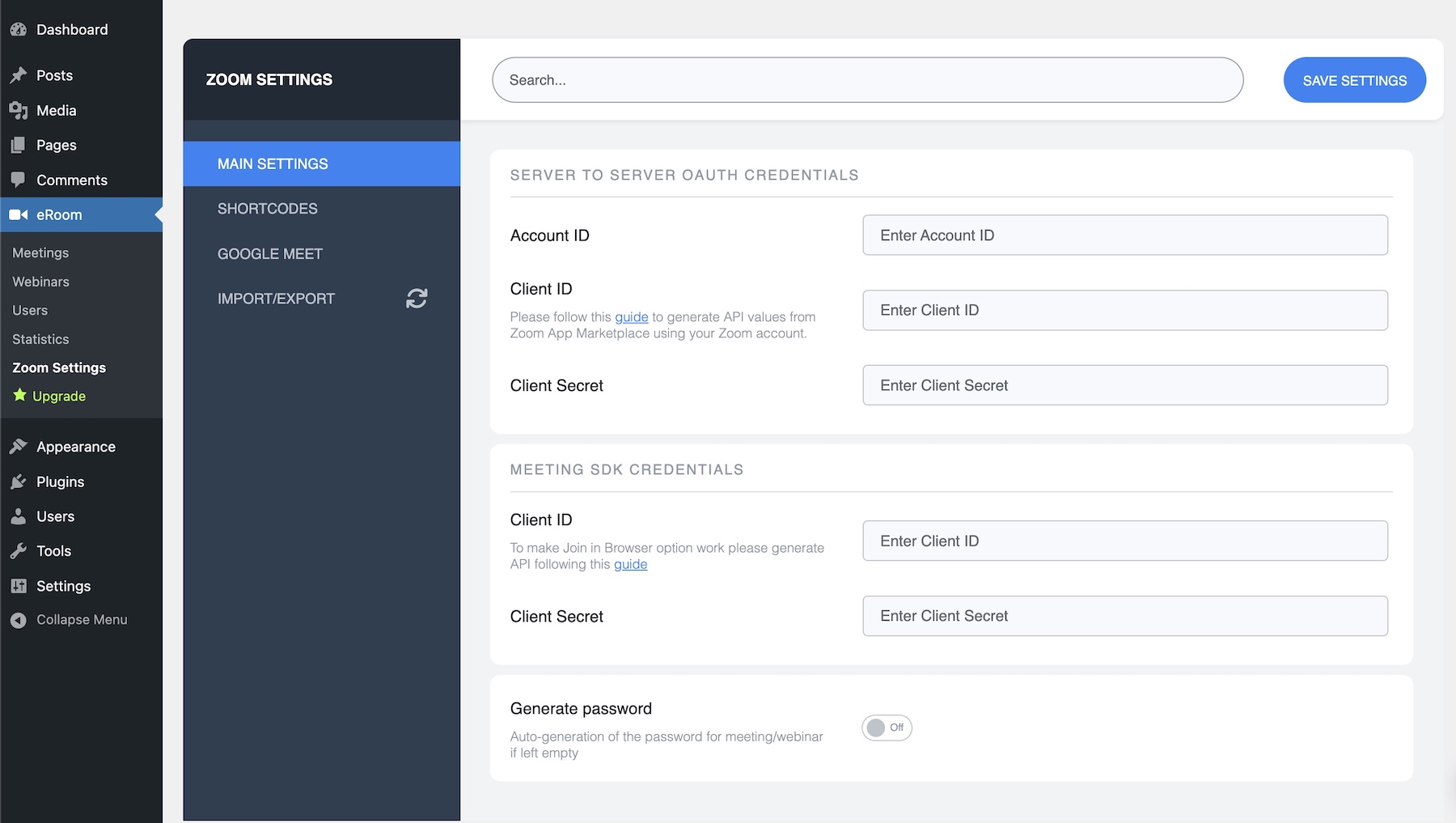
After the plugin activation, there will be appeared the eRoom menu on your dashboard panel. Open the page with the Settings: eRoom > Zoom Settings.

On this page, you need to enter the API credentials of JWT (Json Web Token) and Meeting SDK.
What are your Feelings

  • Happy
  • Normal
  • Sad

Share This Article :

  • Facebook
  • X
  • LinkedIn
  • Pinterest
System RequirementsLicense Activation

Ready to get started?

Join 100,000+ WordPress users. One-time setup, lifetime value.

Get Started — $79.99
View Demo

14-day money-back guarantee · Secure checkout via Stripe

© 2026 TRS Plugins · All rights reserved