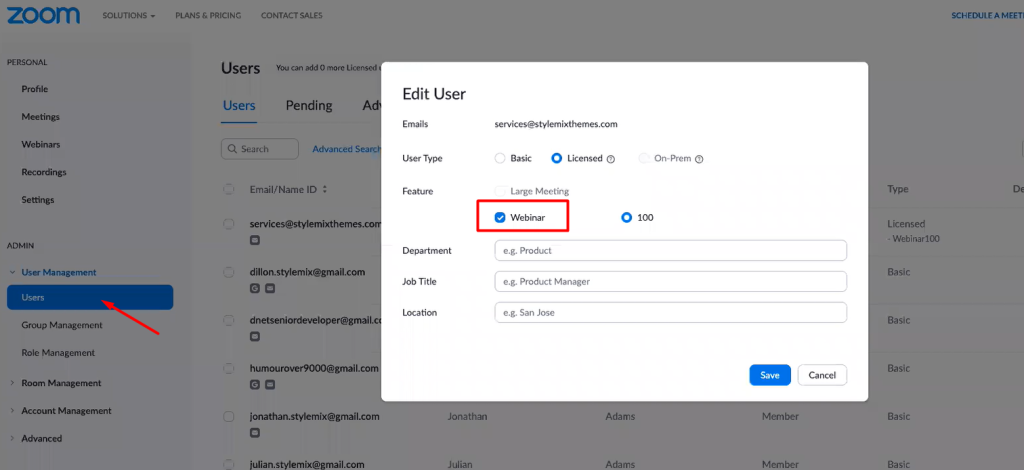

Zoom webinars are available for you in the eRoom plugin.
Webinars will be perfect for you if you:
- offer virtual lectures;
- distribute to a large audience (50+ attendees);
- use the listen-only mode.
Please note the available number of participants varies from 100 to 10,000 depending on the Zoom license you have.
To add a new webinar go to eRoom > Webinars > Add new
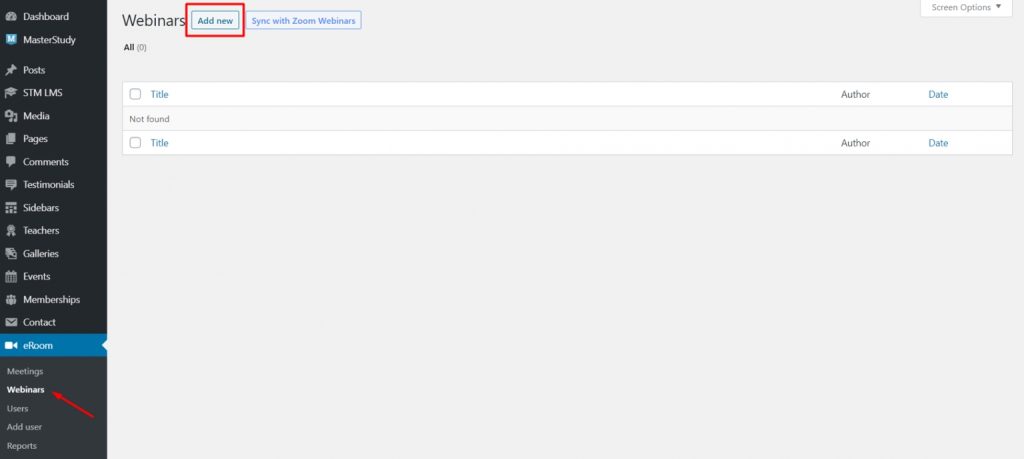
On this page, you can add all the information related to your webinar including title, webinar agenda, webinar time, timezone, duration and much more.
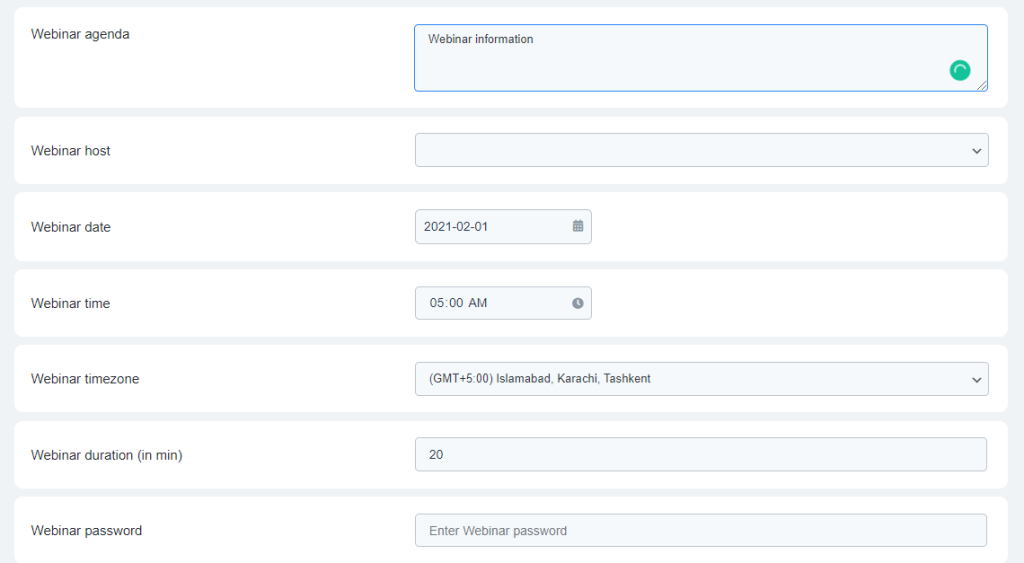
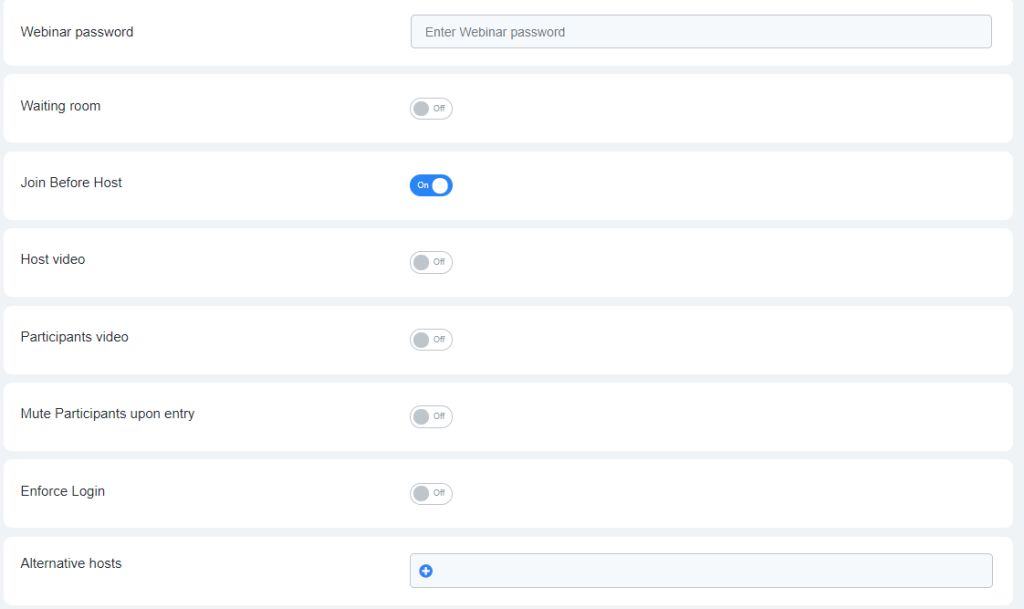
Enter the data and publish your webinars.
Before meetings start time, users can track the countdown.
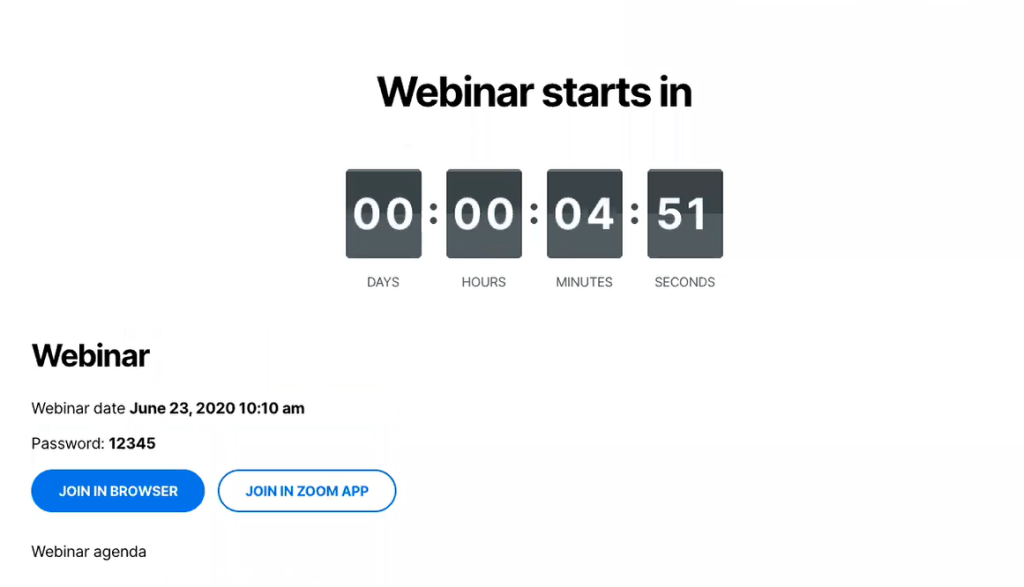
To join the meeting they can use two options that are available: Join in browser or Join in Zoom app
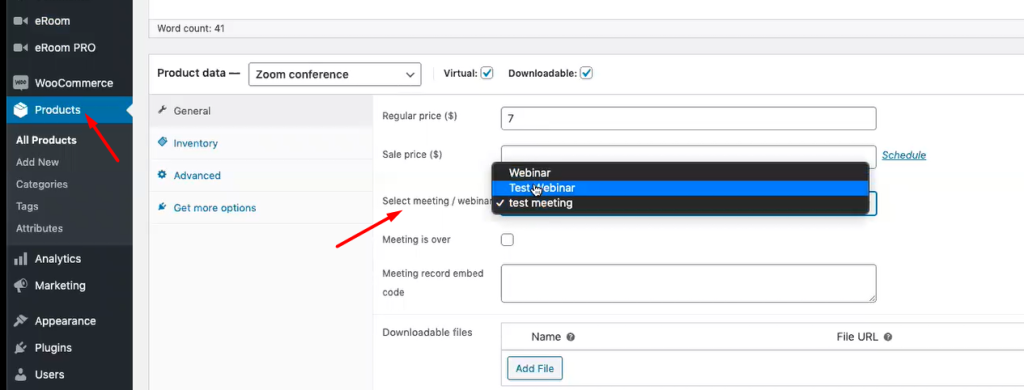
You can also sell your webinars as WooCommerce products. In the WooCommerce > Products > Choose the product you need or add a new one > General settings select Zoom Conference, and choose your webinar in the field Select meeting/webinar.
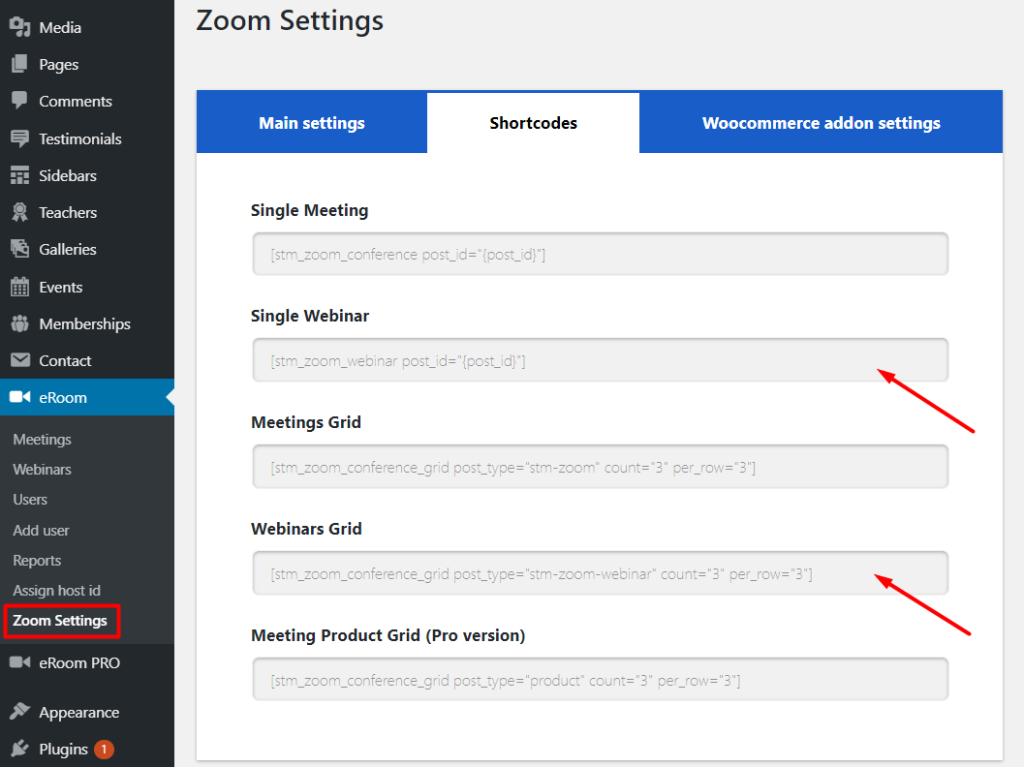
Shortcodes
If you go to Zoom settings you can find the Shortcodes tab on the page. Shortcodes that you can use: single webinar, webinars grid.
Important: you can use webinars service only if you purchased the appropriate plan in Zoom. Learn more about plans and pricing here: https://zoom.us/pricing
After purchasing the plan, in your Zoom account follow the User Management menu > Users, select the user and click on Edit. On the Edit User page you will see the Features section. Check the Webinars option there to enable webinars in your account.