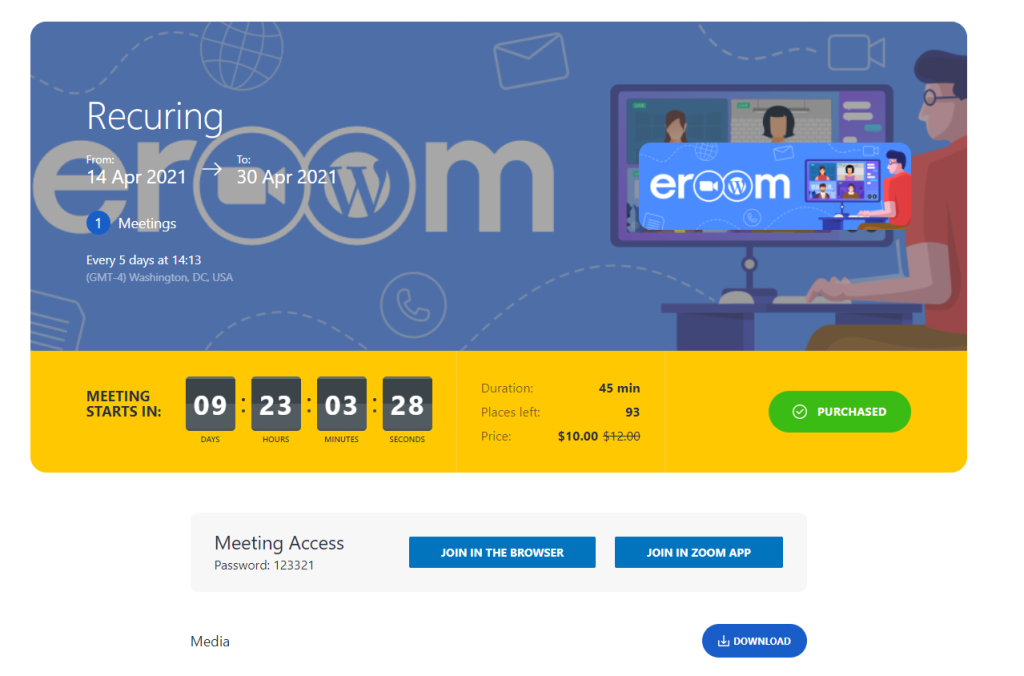

The eRoom Recurring Meetings Addon allows you to create recurring meetings.
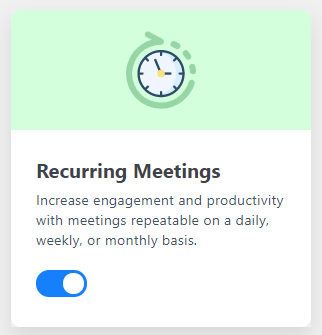
To activate the Addon go to the eRoom Pro menu on your admin dashboard panel and enable the Recurring Meetings addon:
After go to eRoom > Zoom Meetings > Add New to create a new meeting. On the Meeting Settings area, can find the Recurring meeting section:

Once you have enabled it, the Recurrence option selection will be displayed where you can set how frequently a meeting can be repeated.
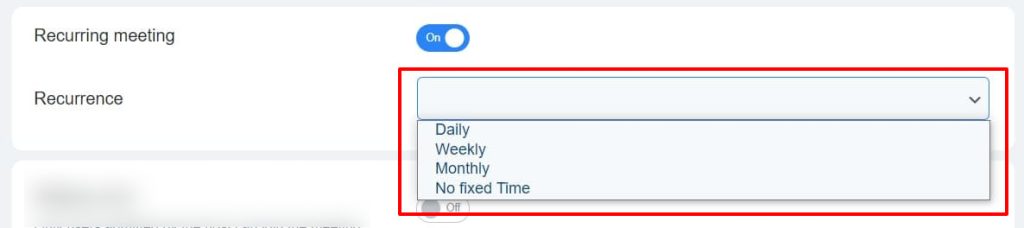
The Recurring Meeting settings are similar to the Zoom platform and fully synchronized with the meeting configuration on the Zoom.
We encourage you to read Zoom Recurring Meetings before starting to use this option.
There are Daily, Weekly, Monthly, and No fixed-time Recurrence options.
Let’s have a look at the settings of them:
Daily #
Select the Daily option to schedule meetings on a daily basis or with a time difference of once every 15 days:
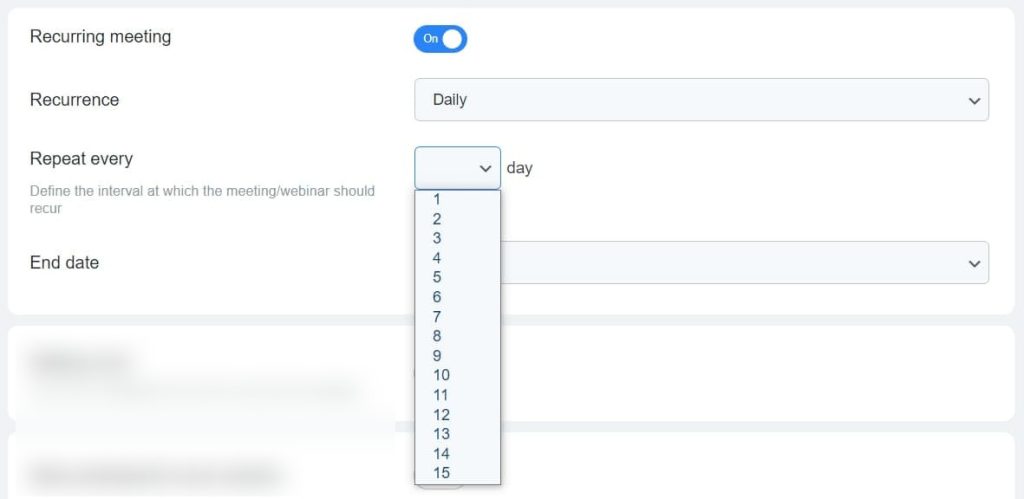
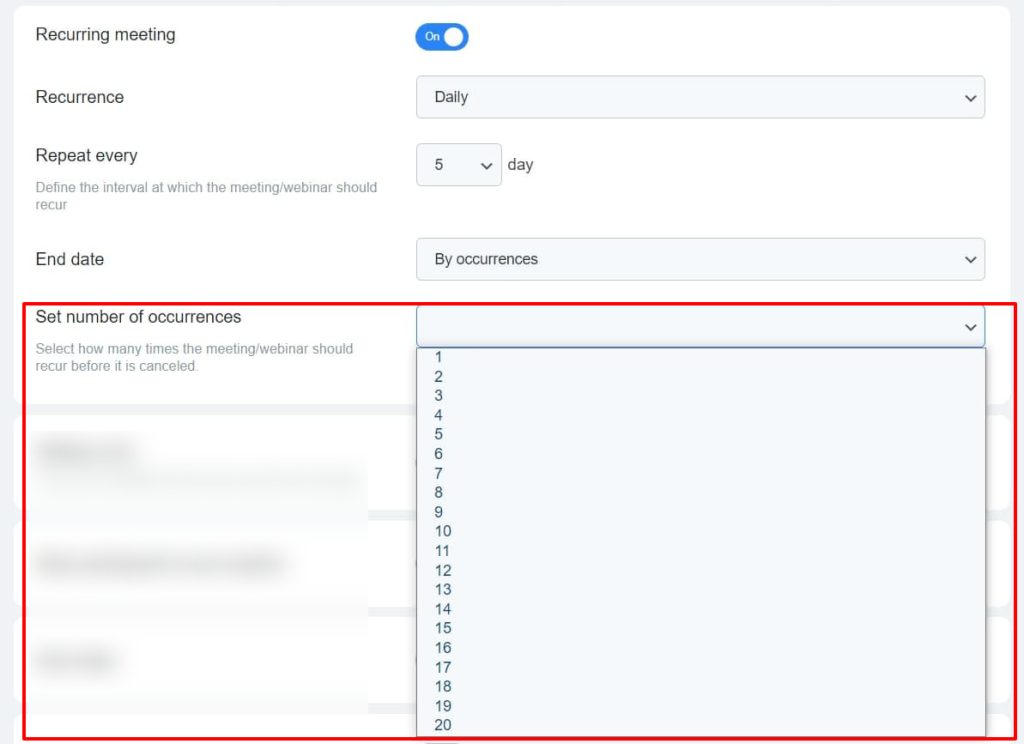
On the End Date field indicate the recurring meetings ending option By date or By occurrences:

If you selected the end by date option, indicate the recurring meeting final date on the Set end date field:

If the end by occurrences option is specified, the Set number of occurrences field appears where you need to indicate the number of meeting occurrences (allowed 20 occurrences):
Weekly #
Select the Weekly option to schedule recurring meetings frequency on a weekly basis:
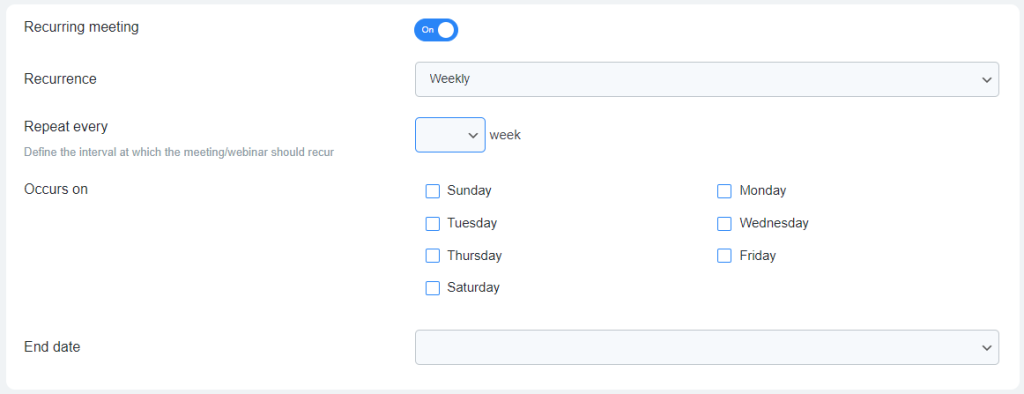
On the Repeat every field specify in how many weeks the meeting will be repeated. Also, select on which day of the week the meeting will take place in the Occurs on section.
On the End Date field indicate the recurring meetings ending option By date or By occurrences.

Monthly #
To repeat the meetings every (1-3) month select the Monthly Recurrence option:
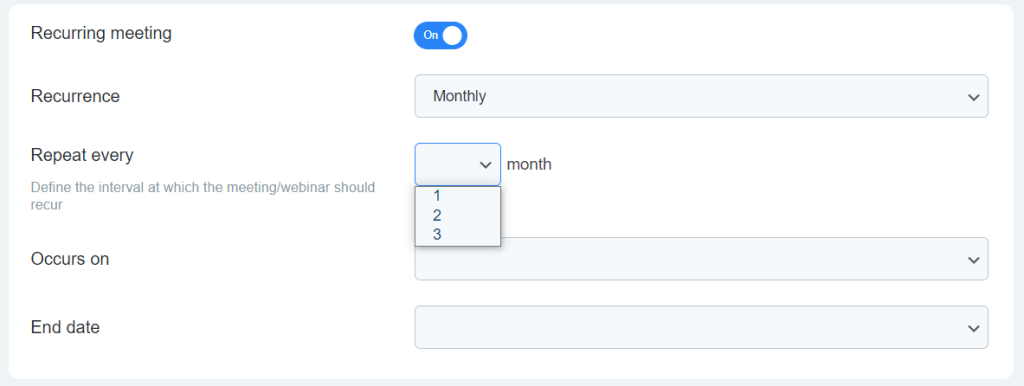
On the Occurs on field select the time of meetings holdings: Day or Weekdays.

If the Day option is indicated, you will need to specify the day of the month on the appropriate field:

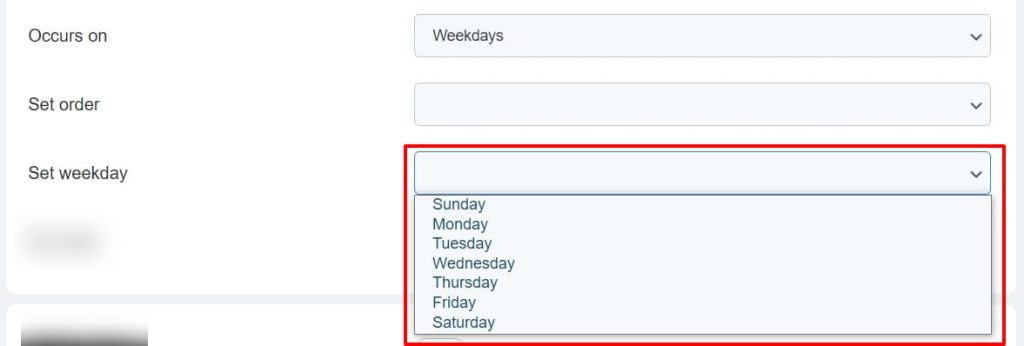
For the Weekdays option, specify on which week of the month the meetings will occur on the First week of the month, Second week, Third week, Fourth week, or last week of the month:
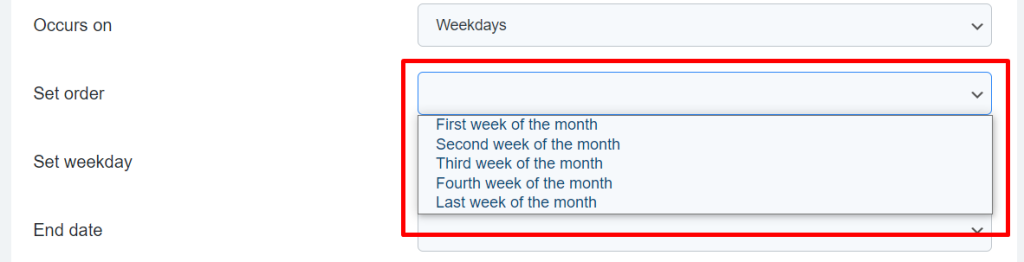
On the Set weekday select the day of the week:
On the End Date field indicate the recurring meetings ending option By date or By occurrences:

No Fixed Time #
Use the No Fixed Time option for an always-available meeting – such a meeting will be always available for the user that has access to it.

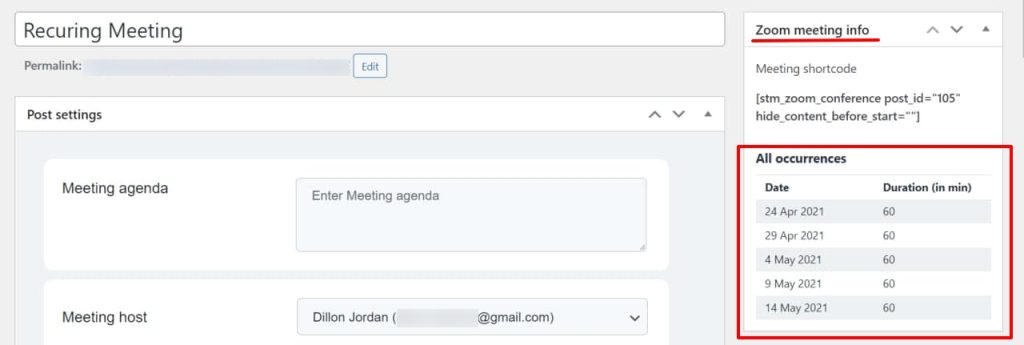
After saving the meeting settings, all occurrences schedule the admin can see on the Zoom Meeting Info section on the right side of the meeting backend page:
The Recurring meeting displaying on the front side:Paid WooCommerce recurring meetings