

Skip to content

Happy New Year

New Year Special!

FLAT

40%

OFF

Ends in

Days
Hours
Get Discount!
  • Pricing
  • Features
  • Docs
  • Blog
  • My Account
  • Contact
Get Started

Getting Started

  • Install and Activate eRoom Free & eRoom Pro
  • System Requirements
  • Configuring the plugin
  • License Activation
  • License Upgrading
  • Meeting Reports
  • Meetings Grid
  • How to Add Meetings to Page
  • How to Add Meetings
  • How to Add New Users

Zoom Integration

  • How to Obtain APIs
  • Webinars
  • Migration Wizard

Google Meet Integration

  • Google Meet Addon

Microsoft Teams Integration

  • Microsoft Team Integration

Purchasable Meeting

  • Purchasable Meetings Addon

Recurring Meeting

  • Recurring Meetings Addon

Hooks

  • Filter: eroom_date_timezone_display
View Categories
  • Documentation
  • Getting Started
  • How to Add Meetings

How to Add Meetings

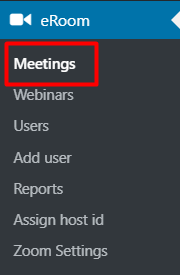
From the eRoom > Meetings menu, you can open the meeting page and create a new meeting or edit the existed one.
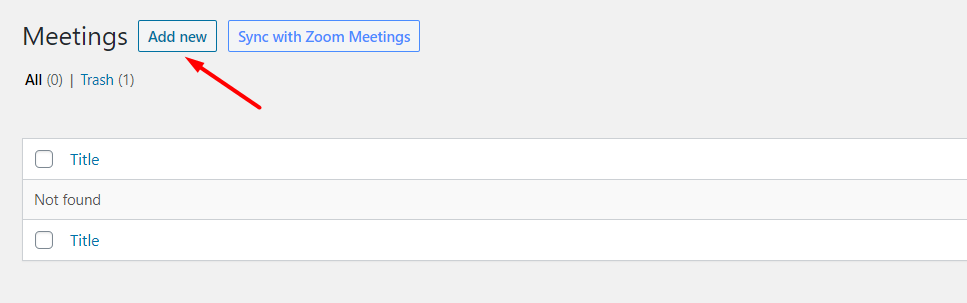
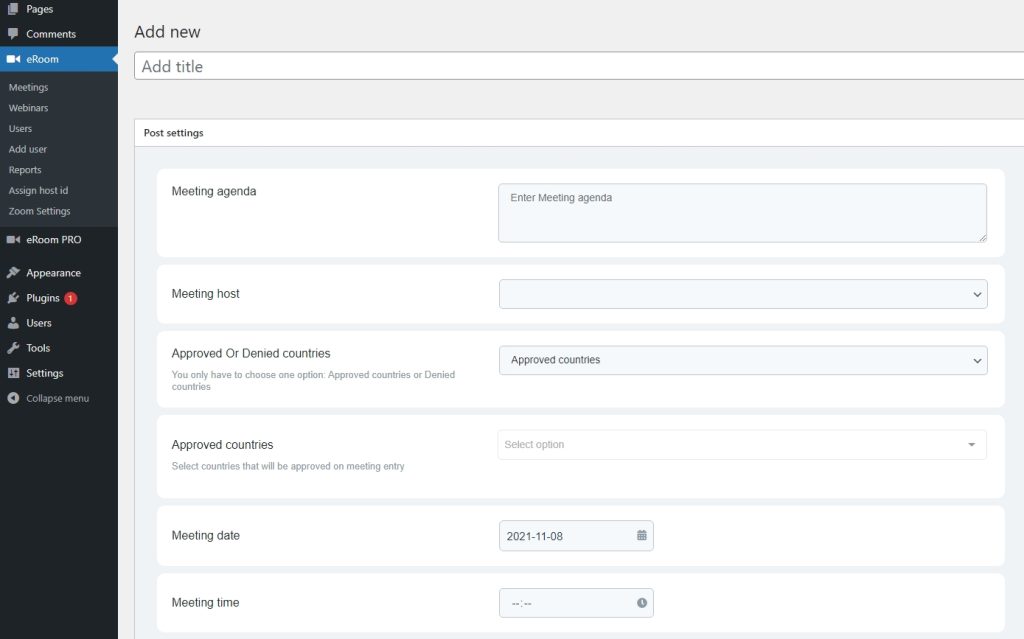
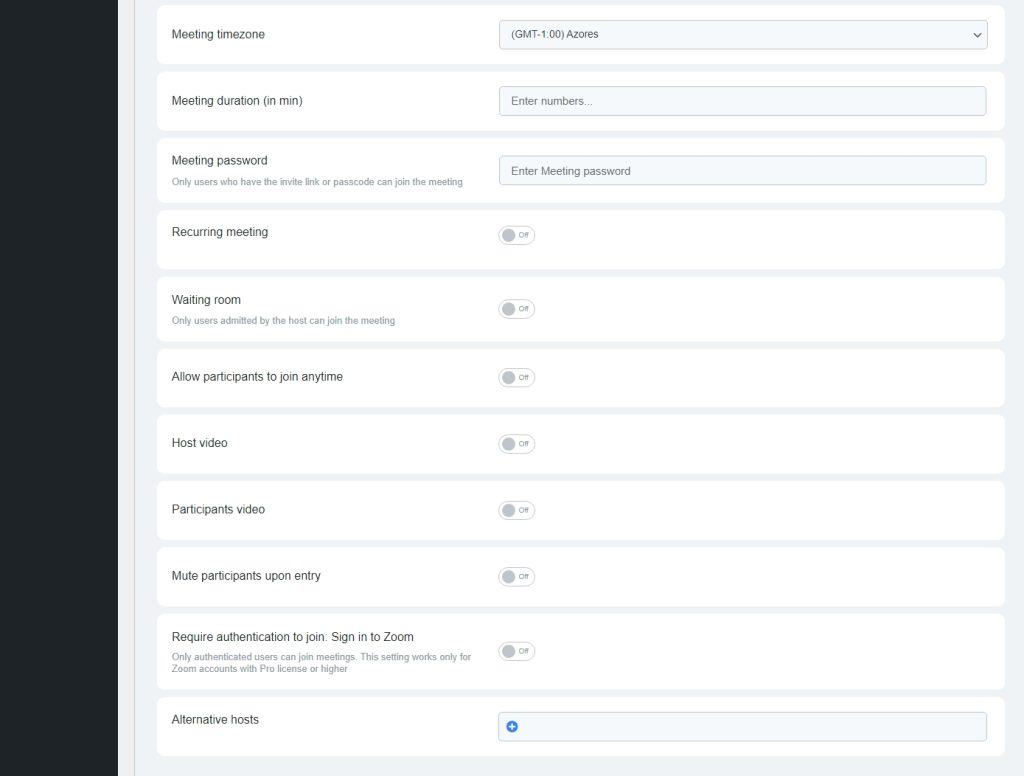
The plugin allows you to submit all the information about the meeting, such as title, meeting date and time, host and agenda, approved or denied countries, specifications about the timezone and meeting duration.
After creating the meeting, there will be added a separate meeting page you can use.
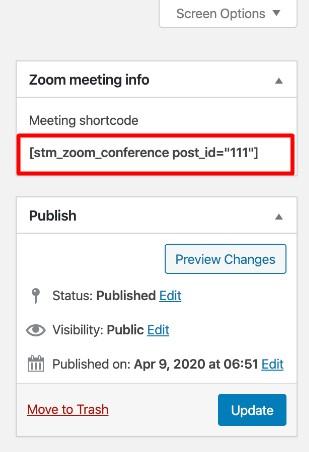
There is also a shortcode that you can add to any page on your website. You can use shortcode in case you want to paste the meeting into a particular page on your website.
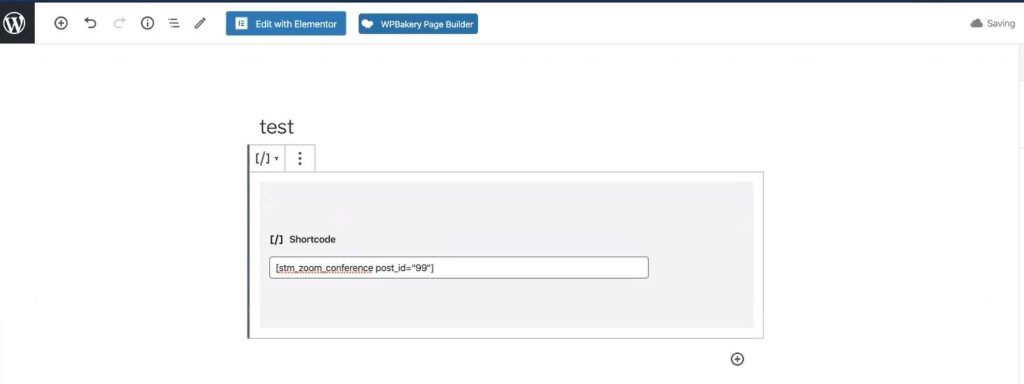
Just copy the shortcode and past it into the page.
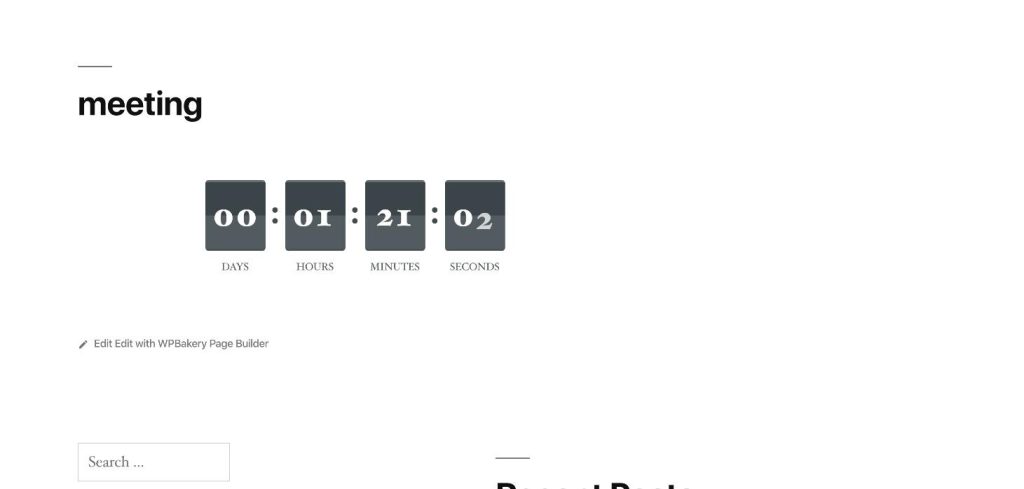
In that case, on this particular page will appear a countdown for the planning meeting.
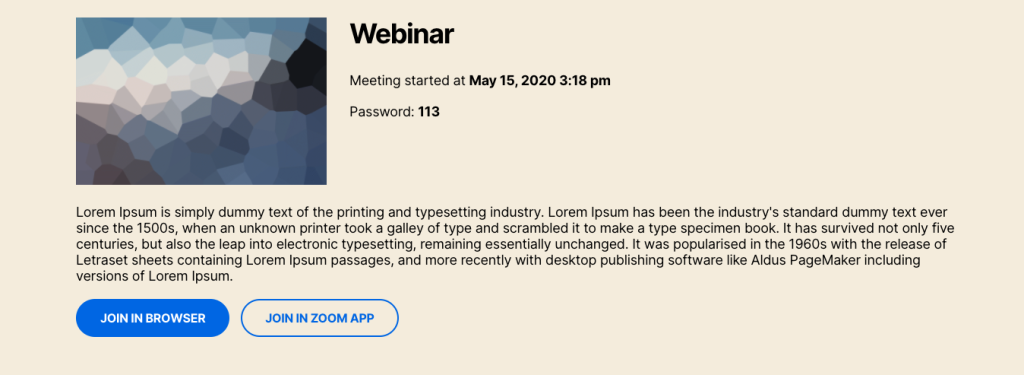
If the meeting has already started, instead of a countdown there will be meeting details provided on the page along with the Join Meeting buttons where users have two options, either to join the meeting in the browser or access the session via the Zoom app.
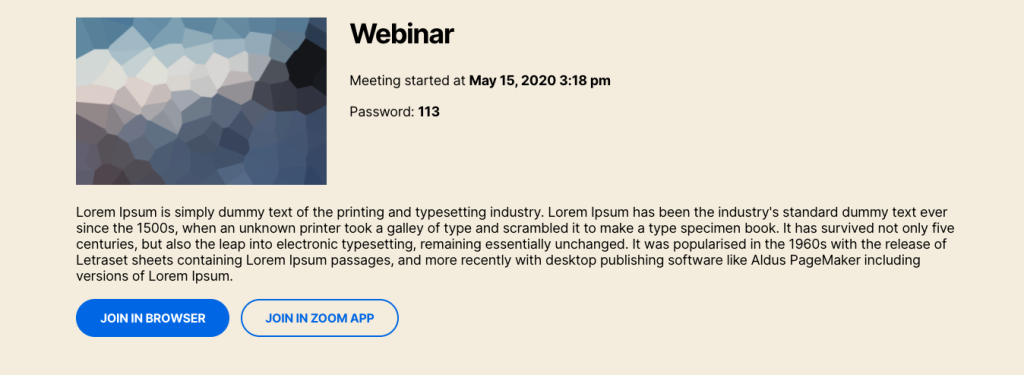
By clicking on Join in browser, the user will be redirected to the Meeting directly as an Attendee.

Note that, the Image (avatar) of the Speaker will be inherited from Gravatar based on the email address of the author of the webinar

What are your Feelings

  • Happy
  • Normal
  • Sad

Share This Article :

  • Facebook
  • X
  • LinkedIn
  • Pinterest
How to Add Meetings to PageHow to Add New Users

Sell Zoom or Google Meet sessions directly on WordPress with eRoom. Manage, monetize, and embed meetings with ease!

Resources
Blog
Documentation
Support
Get in touch
  • support@nocatwp.com

© eRoom WordPress Plugin. All Rights Reserved.

  • Terms of Service
  • Privacy Policy