
How to Create Meetings in WordPress
Online meetings are now essential for businesses, educators, and professionals. As remote work grows, more people need easy meeting solutions. WordPress is a popular choice, with many plugins that add meeting tools to your site. eRoom is a top WordPress meeting plugin that lets you create, manage, and host meetings directly from your dashboard.
This guide will show you how to set up meetings in WordPress using eRoom, with clear steps and helpful tips. Whether you need to host client calls, team meetings, or webinars, eRoom makes online meeting management easy and flexible for everyone.
Why Create Meetings in WordPress?
Before diving into the technical steps of setting up meetings, let’s explore why creating and managing meetings directly on your WordPress site can benefit your business or personal use. With the growing demand for remote work and virtual meetings, integrating meeting tools into your WordPress website is an efficient way to enhance productivity and reduce resource waste.
1. Seamless Integration with Your Website
A key benefit of managing meetings in WordPress is how seamlessly everything integrates. If your site is already on WordPress, adding a meeting plugin lets you keep all your work in one place. Instead of switching between platforms such as Zoom, Google Meet, or Microsoft Teams, you can host meetings directly on your website.
When you add meetings to your website, attendees don’t have to switch between different platforms or log in multiple times. This makes everything run more smoothly and keeps things simple. Users can find meeting details, join sessions, and get updates right on the site they already use.
2. Control Over Branding and User Experience
User experience and branding matter in online meetings. Many external meeting platforms use fixed templates that should not align with your brand, which can make your attendees feel less connected.
Using WordPress for your meetings gives you complete control over the visual appearance and user experience. You can customize the meeting page design to match your site’s theme, ensuring consistency across all of your digital touchpoints. Whether it’s the logo, color scheme, or overall design, integrating a meeting tool into your WordPress website allows you to provide a branded, cohesive experience for your clients or team members. The meeting page can be personalized to reflect your company’s tone, style, and voice, which is something third-party platforms often struggle to achieve.
3. Flexibility and Customization
WordPress is known for its flexibility and customization options, including meeting setup. The ability to fully customize your meeting options gives you more control over how and when meetings take place. From one-time sessions to recurring meetings, the best WordPress meeting tools allow for full personalization of settings, including:
- Meeting Duration: Set the exact time slots for each meeting to ensure they fit within your schedule.
- Time Zones: Automatically adjust for different time zones when scheduling meetings with international participants.
- Access Controls: Decide who can attend meetings, set up waiting rooms, or restrict access to specific participants only.
For instance, if you host webinars, team calls, or client meetings, these tools offer the flexibility to set up different types of meetings with varying levels of customization to meet your needs.
Additionally, WordPress plugins let you integrate tools such as email notifications, custom reminders, and more features that enhance your meeting experience by streamlining and automating it.
4. Efficient Meeting Management
Effective meeting management is essential to maintaining productivity and organization. WordPress offers robust meeting management features that help streamline the process. Whether you are scheduling a single meeting or multiple recurring events, WordPress provides a central hub for all of your meetings.
With the right meeting plugin, managing participant lists, tracking attendance, and rescheduling meetings becomes easier. You can automate processes like sending invitations, confirming attendance, and reminding participants about upcoming meetings. These automated reminders ensure that participants stay on track and that no one misses a meeting.
Moreover, hosting meetings directly on your website lets you track all meeting data within WordPress, reducing the need to manually maintain meeting logs across multiple systems.
5. Increased Productivity and Cost Savings
One of the most significant benefits of hosting meetings on WordPress is the time and cost savings. By integrating your meetings directly into your website, you reduce the need for separate meeting platforms, subscriptions, and third-party integrations. This can result in substantial cost savings over time, particularly for businesses with frequent meetings and events.
Moreover, centralizing your meetings on WordPress allows you to focus on your core business activities. With automated email reminders, recurring meeting options, and easy access to all your meeting data, your team can focus more on delivering results and less on coordinating logistics. This increase in efficiency directly translates into higher productivity and improved resource allocation.
Additionally, WordPress meeting plugins often come with analytics features to help you measure the success of your meetings. For example, you can track attendance rates, participant engagement, and feedback, all of which can help improve future meetings and overall team performance.
Choose eRoom: Ultimate Meeting Plugin for WordPress
If you are looking to host seamless online meetings, webinars, or virtual events directly from your WordPress website, eRoom is the perfect solution. Whether you are an educator, consultant, or remote business owner, eRoom is designed to streamline your meeting management, allowing you to conduct everything from your WordPress admin panel.
eRoom enables you to integrate Zoom, Google Meet, and Microsoft Teams directly into your website, making it easy to manage and host events across multiple platforms. With eRoom, you can schedule live training sessions, sell access to exclusive webinars through WooCommerce, and host global team meetings, all with minimal effort.
Key Features of the eRoom Meeting Plugin for WordPress
Beyond just managing meetings, eRoom offers features that help drive engagement and boost your website traffic. By integrating professional, high-quality online events into your WordPress site, eRoom transforms it into a dynamic hub for collaboration, business development, and audience growth.
1. Seamless Zoom API Integration
- eRoom provides direct Zoom API integration, allowing you to manage your Zoom meetings, webinars, and participants directly from the WordPress dashboard. This makes scheduling and overseeing events quick and easy without switching between platforms.
2. Multi-Platform Support for Google Meet and Microsoft Teams
- eRoom isn’t just limited to Zoom; it also supports Google Meet and Microsoft Teams. This versatility allows you to plan and host video conferences across various platforms, giving you the freedom to choose the best tool for your meeting needs.
3. Easy Embedding with Shortcodes
- With eRoom, embedding meetings is straightforward. You can use shortcodes to add meetings to any page or post on your WordPress site. Plus, you can enhance the user experience by adding a countdown timer, so attendees know exactly when to join.
4. Sync with Google Calendar and iCal
- Never worry about forgotten meetings again. eRoom syncs meeting details with Google Calendar and iCal, ensuring that your participants receive automatic reminders and never miss a session.
5. Flexible Access for Attendees
- Attendees can join meetings directly in their browser or via the required apps, such as Zoom, Google Meet, or Microsoft Teams. This flexibility makes it easy for your audience to participate without installing additional software.
6. Monetize Your Meetings with WooCommerce Integration
- With the purchasable meetings add-on, you can sell access to webinars, live training sessions, or one-on-one consultations as WooCommerce products. This feature helps you monetize your events, providing a steady revenue stream for your business.
7. Manage Recurring Events
- eRoom makes it easy to schedule recurring meetings or webinars, such as weekly training sessions or team check-ins, using the same meeting ID. This simplifies the process for regular events and ensures that your participants can access future sessions with ease.
8. Enhanced Security Features
- For added security, eRoom allows you to approve or block user entry based on their geographical location. This feature helps you control who can join your meetings, ensuring only the right participants can access them.
9. Detailed Online Meeting Reports
- Track your event performance with eRoom’s detailed statistics. You can monitor important metrics, such as attendee numbers, meeting duration, and engagement, giving you valuable insights into the effectiveness of your online events.
With eRoom, you get an all-in-one meeting management solution for WordPress that is easy to set up, highly customizable, and supports all the major virtual meeting platforms. Whether you are conducting educational webinars, managing remote team collaborations, or hosting business consultations, eRoom empowers you to turn your WordPress site into a professional, interactive meeting hub.
How to Create Meetings in WordPress with eRoom
Setting up meetings in WordPress with eRoom is simple and doesn’t require advanced technical knowledge. Here’s a step-by-step guide to help you get started.
1. Install eRoom Meeting Plugin in WordPress
The first step in using eRoom to create meetings in WordPress is to install eRoom. Here’s how:
- Access Your WordPress Dashboard: Log in to your WordPress admin panel.
- Go to Plugins > Add New: From the left-hand menu, navigate to Plugins > Add New.
- Search for eRoom: In the search bar, type eRoom.
- Install the Plugin: Click Install Now next to the eRoom plugin. After installation, click Activate to enable the plugin on your site.
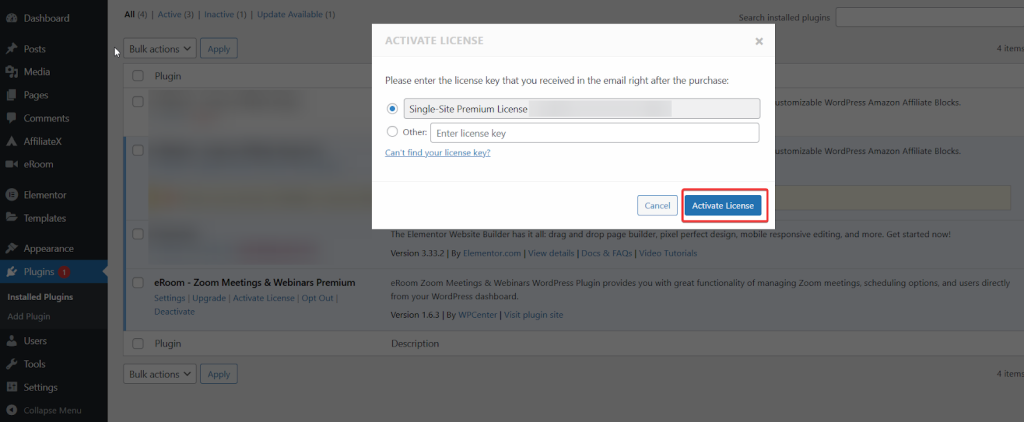
Once activated, a new menu item called eRoom will appear on your dashboard. Click on it to configure the plugin and begin using it. By following these steps, you can seamlessly integrate eRoom into your WordPress site.
2. Configure eRoom Settings
Now that the plugin is installed, it’s time to configure the settings. This is where you set up your preferences for meeting times, security options, and integrations.
The whole setup usually takes a few minutes. After that, you’ll have full access to all of eRoom’s features.
- Navigate to eRoom Settings: From your WordPress dashboard, go to eRoom > Settings > General Settings.
- General Settings:
- Allowed User Roles: You can set your user roles to Editor, Author, Contributor, or Subscriber as needed.
- Timezone Display Format: Ensure the time zone is set correctly to avoid confusion with meeting times.
- Account Setup: You will need to set up your online meeting or webinar platform (e.g., Zoom, Microsoft Teams, Google Meet) and configure WooCommerce Addon settings if you plan to sell your webinars or meetings online.
These configurations will ensure your meetings run smoothly and fulfil your needs. Additionally, you will have access to Shortcodes to integrate your meeting or webinar into your WordPress site, with Import/Export functionality.
3. Create a New Meeting with eRoom
With eRoom configured, you can start creating meetings. Here’s a simple breakdown of how to do it:
- Navigate to eRoom > Meetings: In your dashboard, click on eRoom > Meetings.
- Click “Add New”: You will be taken to a page where you can enter your meeting details.
- Setup & Configuration: There, you can set the feature image for your meeting landing page, choose your platform Zoom, Microsoft Teams, Google Meet, set Meeting Agenda, Meeting Host, select country, date, time, timezone, duration, password, recurring meeting, waiting room, allow participants and a lot more that will facilitate you to setup and configure your meeting.
Similarly, if you choose to create a webinar, you can configure settings such as the meeting time to your preference.
After filling in the details, click Save to create the meeting.
Setting Up Purchasable Meetings
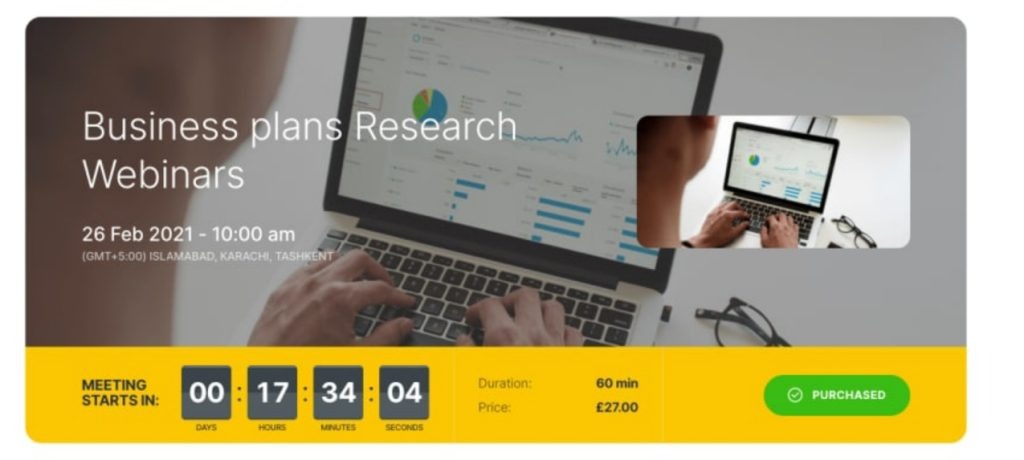
To monetize your meetings, WooCommerce eRoom comes with the Purchasable Meetings option.
- Make sure you have installed and activated WooCommerce
- Follow the process to create your meeting in eRoom as usual
- Navigate to Products > Add New in WooCommerce
- Now you can link the product to your eRoom meeting
- You can set your price and payment options afterwards
- Finally, you can publish the product so customers can now purchase access
Use Cases for eRoom Meeting Plugin in WordPress
eRoom is versatile and can be used in various scenarios. Here are some common use cases:
1. Business Meetings
Small businesses, freelancers, and large corporations can use eRoom to host virtual meetings with clients, prospects, or team members. The plugin allows for easy scheduling, management, and access control.
2. Educational Webinars and Classes
Educators and training professionals can use eRoom to host online classes or webinars. The recurring meeting feature allows for continuous sessions, while the participant management feature ensures only invited students can access the content.
3. Client Consultations
For consultants or service providers, eRoom allows you to schedule one-on-one consultations or group meetings with clients. It ensures that meetings are professional and secure.
4. Workshops and Training Sessions
Businesses offering training services can use eRoom to manage their workshops and online courses. The ability to set recurring meetings is especially helpful for ongoing educational sessions.
Pricing Plans and How to Get eRoom
eRoom offers several pricing plans depending on the features you need. Whether you’re an individual user or a large business, there’s a plan to suit your needs. To purchase eRoom plugin, visit the official website, and if you want to try out the eRoom, you can download it directly from the WordPress plugin repository.
Now Get the Right Meeting Plugin For Your Business
| Features | What to Look For | How eRoom Delivers |
| Integration | Direct Zoom, Microsoft Teams and Google Meet connection from the WordPress dashboard | Native Zoom, Microsoft Teams and Google Meet integration with complete meeting management |
| Meeting management | Easily create, schedule, and control meetings/webinars in WordPress | Easily create, schedule, and manage meetings and webinars inside WordPress using the preferred meeting platform |
| Frontend display | Effortless embedding, countdowns, and joining from a page | Shortcodes/blocks, countdown timer, join via browser |
| Monetization | Flexible options to sell access to sessions | Add‑ons for purchasable meetings and webinars with powerful WooCommerce Integration |
| Calendars & tools | Sync with calendars, support for other platforms | Google Calendar sync, Microsoft Teams and Google Meet add‑on support |
Creating and managing meetings in WordPress has never been easier. With eRoom, you can host secure, customizable, and efficient meetings directly from your website. Whether you are conducting client calls, team collaborations, webinars, or educational sessions, eRoom provides the tools you need to manage meetings without the hassle of third-party software.
Start using eRoom today and elevate your meeting management!