
How to Choose the Best Zoom Meeting Plugin for WordPress
Your website is the definitive hub for your business, whether you run online classes, offer coaching sessions, host virtual events, or manage a remote team. Therefore, the ability to seamlessly integrate live video is not just a convenience, but it’s an essential requirement for success.
The traditional approach to virtual meetings is riddled with friction:
- Constantly switching between tools (WordPress, Zoom, email, membership platforms) actually wastes time
- Dealing with manual meeting links that are often lost or incorrect creates user frustration
- Experiencing missed registrations and attendance drops due to a disjointed user journey
- A critical lack of branding and control when redirecting users to the generic Zoom application
Embedding your Zoom meetings and webinars directly within your WordPress site eliminates these common pain points, creating a professional, secure, and branded experience for your users.
The crucial question is which plugin can deliver this? The best Zoom meeting plugin for WordPress isn’t simply the one with the longest feature list. It’s the one that perfectly aligns with your specific business goals for monetization, education, and team management.
What Makes a Great WordPress Zoom Plugin?
The best WordPress Zoom plugins stand out by offering essential features and being easy to use. Here are the key points to look for:
Get Direct Zoom API Integration
Your chosen plugin should connect directly and securely to the Zoom API. This lets you manage meetings, webinars, recordings, users, and reports right from your WordPress dashboard, so you don’t have to switch between platforms.
Manage Online Meetings and Webinars
Your preferred plugin should let administrators easily create, schedule, and manage Zoom meetings and webinars from the WordPress admin area. It should also support features like recurring sessions and, when needed, handle registrations.
Easy Embedding and Join Options
Your Zoom meeting plugin should let you embed sessions using shortcodes or Gutenberg/Elementor blocks on any WordPress page or post. It should also allow participants to join via their browser without downloading or opening the Zoom app.
Flexible User Access Management
You should be able to manage Zoom users and control who can access meetings based on WordPress user roles or membership levels. This helps protect premium content and enables private sessions.
Advanced Reporting and Analytics
Your Zoom meeting plugin for WordPress should offer detailed reports on engagement and performance right in your dashboard. This helps you track attendance, measure success, and learn more about your virtual events.
Full Customization and Extensibility Facility
- Frontend layout customization is essential for branding and creating a professional appearance. Learning Management Systems (LMSs) should integrate seamlessly with your site’s design and structure.
- Add-ons or integrations with services like WooCommerce for ticket sales, Google Calendar for syncing, and membership plugins can make the plugin much more helpful.
Ensure Performance and Security
Your Zoom meeting plugin for WordPress should get regular updates to stay compatible with the latest Zoom and WordPress versions. It should also have secure API connections and reliable support and documentation. This helps you run your online meetings smoothly and without trouble.
It’s also helpful if the plugin supports advanced Zoom features, such as multiple hosts, live chat, polls, and webinar options like Q&A and breakout rooms. These features make events more interactive for attendees.
Key Criteria to Evaluate Before Choosing
Here is a breakdown of what to look for under each and what to consider for each key area.
Admin Experience: Ease of Setup and Usability
This section looks at how quickly and easily an administrator, even without technical skills, can set up and manage Zoom events.
| Criteria | What to Look for | Why it Matters |
|---|---|---|
| API Connection Flow | Simple, guided, copy-and-paste process for connecting the Zoom API Key and Secret. | A complicated setup is the first barrier to adoption. It should be virtually instant after generating the keys. |
| Admin UI Clarity | Clean, well-organized dashboard with intuitive navigation for creating and managing meetings, recordings, and reports. | Minimizes the learning curve and reduces the chance of errors when scheduling critical events. |
| Meeting Creation Speed | Clicks or steps are required to schedule a meeting, including options for title, date, duration, and password. | Maximizes efficiency for users who frequently schedule events. |
| Non-Technical User Focus | Settings should use clear, plain language rather than Zoom-specific technical jargon. | Ensures all team members can confidently use the tool without needing a developer. |
Functionality Fit: Flexibility and Scalability
This section helps you determine whether the plugin meets your current needs and can grow with your business. It should support different event types and ways to earn money.
| Criteria | What to Look for | Why it Matters |
|---|---|---|
| Recurring Meetings & Webinars | Native support for all Zoom recurring types (daily, weekly, no fixed time) and the ability to manage all occurrences. | Essential for courses, membership groups, and ongoing training, saving time from creating manual sessions. |
| Multiple Host Support | Easy assignment of other WordPress users as Zoom co-hosts or alternative hosts. | Allows large organizations or educational platforms to delegate hosting duties without sharing admin credentials. |
| Use Case Support | Seamless integration with relevant third-party tools (LMS/Courses, WooCommerce/eCommerce, Event Calendars, Booking Plugins). | Turns the plugin from a basic embed tool into a powerful, integrated solution for online courses, paid events, and coaching. |
Reliability Check: Performance, Security, and Support
This is the essential foundation for ensuring the plugin stays stable and lasts on your site.
| Criteria | What to Look for | Why it Matters |
|---|---|---|
| Plugin Update Frequency | Check the changelog or WordPress.org repository: ideally, updates should occur every few months or immediately following a major Zoom/WordPress release. | Demonstrates active development, bug fixes, and continuous security patching. |
| Compatibility Check | Clearly stated compatibility with the latest stable versions of both WordPress (core and Gutenberg/Elementor) and Zoom API standards. | Prevents site crashes and ensures all features remain functional after platform updates. |
| Documentation & Support | Comprehensive, searchable knowledge base, video tutorials, and a responsive developer support team. | Provides a lifeline when critical issues occur and helps new users maximize the plugin’s potential. |
By checking the best Zoom meeting plugin for WordPress against these three criteria, you can pick a tool that’s easy to use, can grow with your needs, and is reliable for your important virtual events.
- Ease of setup and usability: API connection flow, admin UI clarity, and how quickly non‑technical users can create meetings.
- Flexibility and scalability: Recurring meetings, webinars, multiple hosts, and support for different use cases (courses, events, coaching).
- Performance, security, and support: Plugin update frequency, compatibility with the latest WordPress and Zoom, documentation, and support responsiveness.
eRoom: Best Choice for WordPress Zoom Meetings & Webinars
eRoom makes it easy to embed your Zoom meetings, sessions, and webinars right into your WordPress website. It’s built for educators, consultants, and remote businesses. You can manage everything from your WordPress admin panel, giving you complete control over your online events.
You can schedule live training sessions, sell exclusive webinar access with WooCommerce, or host global team meetings. eRoom also helps you boost site traffic and engagement, and it supports Google Meet and Microsoft Teams.
eRoom gives you the flexibility to host professional, high-quality online events. It can turn your website into a strong hub for collaboration and business growth.
Here are some top features of the eRoom Zoom meeting plugin for WordPress:
- Direct Zoom API integration lets you manage your Zoom meetings, webinars, and users right from your WordPress dashboard.
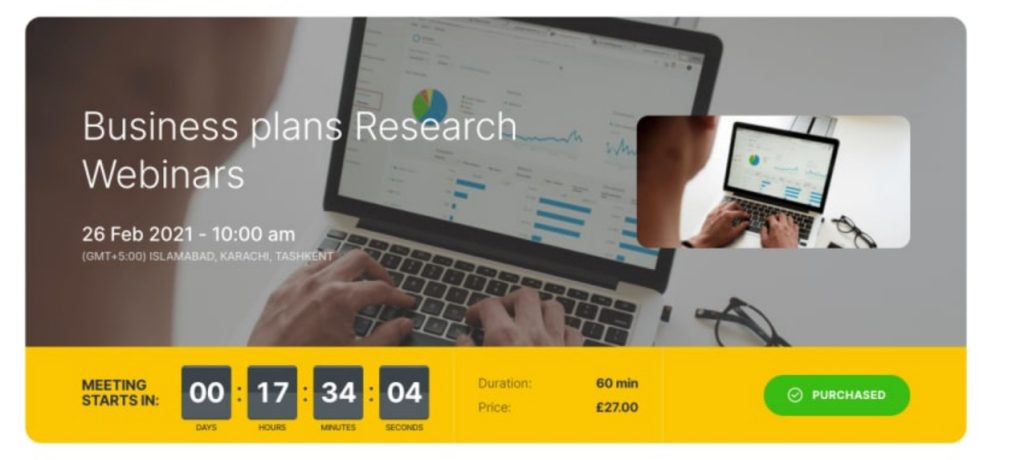
- You can embed meetings on any page or post using shortcodes, and add a countdown timer for attendees.
- Manage users and view important Zoom performance and engagement reports from the admin area.
- Sync meeting details with Google Calendar and iCal so participants never miss a session.
- Attendees can join meetings either through their browser or the Zoom app, making access flexible.
- eRoom supports Google Meet and Microsoft Teams so that you can plan and host video conferences across multiple platforms.
- With the purchasable meetings add-on, you can sell access to webinars and video consultations as WooCommerce products.
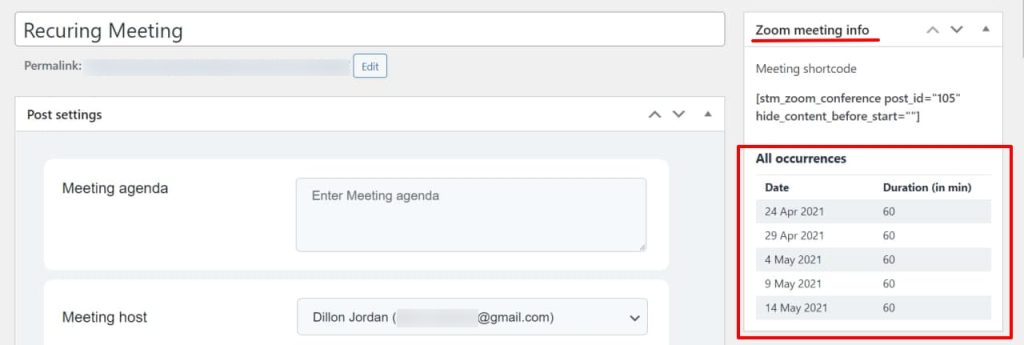
- Recurring events let you schedule and manage meetings or webinars with the same meeting ID, which is great for weekly classes or team check-ins.
- You can approve or block user entry from certain countries or regions with enhanced security features.
- Get detailed online meeting statistics, so you or your customers have complete control over monthly event data.
👉 Learn More: Install and Activate eRoom Free & eRoom Pro
Use Cases: When eRoom is the Best Choice
eRoom is a complete Zoom meeting plugin for WordPress that brings video conferencing and webinars to your website through Zoom, Google Meet, and Microsoft Teams. This integration makes it a top choice for digital communication and online business needs. Here are some examples:
Online Courses and Coaching: Recurring Sessions, Easy Embedding, and Better Control
eRoom is designed for educators and coaches who want a secure, integrated way to deliver live content and earn from their expertise on their own site.
Recurring Sessions & Monetization
- You can set up recurring meetings and webinars, which are perfect for weekly classes, ongoing coaching, or subscription content.
- eRoom works with WooCommerce, so you can sell access to live, recorded, or archived meetings and webinars as products.
- It also integrates with LMS platforms, letting you include conferences and webinars in your online courses.
Easy Embedding in Course Pages
With eRoom, you can use shortcodes and Gutenberg or Elementor widgets to embed meeting or webinar links on any course page. This keeps students and clients on your site for a smooth experience.
Better Control Over Who Joins
- Manage attendees from your WordPress dashboard, including user access and registration.
- Advanced features let you approve or block users from certain countries or regions, improving security and compliance.
Webinars and Virtual Events: Countdown, Webinar Support, and Calendar Integration
eRoom gives organizers and marketers the tools to make event hosting more professional, from promotion to follow-up.
Professional Event Presentation
- You can add countdown timers to event pages to help attendees know exactly when sessions start, with support for different time zones.
- eRoom supports all the main features of Zoom Webinars, including large audiences in listen-only or video-conference modes. This makes it great for big virtual lectures or product launches.
Integration with Calendaring or Event Tools
eRoom makes it easy for attendees to sync events with Google Calendar and iCal. They can add event details, including the meeting link and time zone, to their calendar with one click.
Agencies and Businesses: Managing Multiple Hosts and Accounts, and Performance Analysis
eRoom offers centralized management and reporting, which is essential for teams, agencies, and businesses that use virtual communication.
Managing Multiple Hosts and Accounts
- eRoom features an easy-to-use admin panel for adding, deleting, and editing meetings and webinars.
- You can assign alternative hosts and manage user roles right in WordPress.
- eRoom works with WordPress multisite, making it a good fit for agencies or large organizations managing multiple accounts or sites, and it can handle up to 10,000 participants.
Using Reports to Analyze Engagement and Performance
- eRoom automatically collects and centralizes key data by connecting with the conferencing tool’s API.
- You can see performance and engagement reports in your WordPress dashboard. Tracking metrics like meeting views, sign-ups, and engagement helps with ROI analysis and improvement.
Comparison: Why eRoom is the Best Zoom Meeting Plugin for WordPress
| Aspect | What to Look For | How eRoom Delivers |
|---|---|---|
| Integration | Direct Zoom connection from the WordPress dashboard | Native Zoom integration with complete meeting management. |
| Meeting management | Create, schedule, and control meetings/webinars in WordPress | Create, schedule, and manage Zoom meetings and webinars inside WordPress. |
| Frontend display | Easy embedding, countdowns, and join from page | Shortcodes/blocks, countdown timer, join via browser. |
| Monetization | Options to sell access to sessions | Add‑ons for purchasable meetings and webinars with powerful WooCommerce Integration |
| Calendars & tools | Sync with calendars, support for other platforms | Google Calendar sync, Microsoft Teams and Google Meet add‑on support. |
Final Thoughts: From “Best Zoom Meeting Plugin” to Best Fit
A top-tier WordPress Zoom meeting solution should be easy to set up and use, flexible enough to grow with your needs, and strong in performance, security, and support. When you review plugins for features such as direct API connection, WooCommerce integration, and recurring session support, you can be confident you are choosing a stable and scalable option.
In the end, the best Zoom meeting plugin for WordPress is the one that matches your business goals. If you want to make things easier for users, increase sales of live content, and create a platform that can grow, your decision becomes much simpler.
Get eRoom with your own checklist in mind. It offers strong, centralized management and can turn your WordPress site into a professional hub for all your virtual meetings, whether you use Zoom, Google Meet, or Microsoft Teams. Take the next step and start hosting your online events today.