How to Sell Zoom Webinars in WordPress With eRoom and WooCommerce
Hybrid and remote work models, along with online meetings and webinars, have transformed the way businesses connect with employees and target audiences. Whether it’s for training, knowledge sharing, or product promotion, webinars offer a convenient and scalable way to communicate. If you are using WordPress, integrating eRoom with WooCommerce is an effective way to sell Zoom webinar access directly on your site.
By the end of this article, you will have a complete understanding of how to set up, launch, and optimize your webinar sales system. Even if you are not technically minded, the step-by-step instructions will walk you through every click and decision.
How Selling Webinars Online Can Transform Your Business
Selling your webinars online opens up a world of opportunities for both you and your audience. It’s not just about hosting a one-time event. It’s about building a sustainable revenue stream, expanding your reach, and providing valuable content to those who need it most. Here’s why you should consider selling your Zoom webinars:
1. Wider Audience Reach
When you sell webinars online, you are not limited by geography. Whether someone is in your local area or across the globe, they can access your content with just a few clicks. This allows you to attract a larger, more diverse audience, increasing your chances of making more sales and building a bigger community.
2. Passive Income Stream
After creating and selling a webinar, you can offer it as evergreen content. This allows ongoing sales and provides passive income without ongoing effort.
3. Establish Your Expertise
Selling webinars highlights your expertise and allows you to engage with an audience that values your insights. This strengthens your brand, builds trust, and can lead to future opportunities such as consulting or coaching.
4. Scalable & Flexible
Webinars allow you to scale your business without extra resources. There are no venue or travel costs, and you can host as many sessions as needed on topics relevant to your audience. This flexibility supports business growth at your own pace.
5. Enhanced Customer Engagement
Selling webinars enables direct engagement with customers. Interactive features like Q&A sessions, polls, and surveys create a more personal experience, deepen connections, and encourage repeat attendance.
6. Increased Brand Visibility
Promoting and selling webinars online also markets your brand. Regular webinars increase brand recognition and associate your business with high-quality, valuable content, making it easier to attract and retain customers.
7. Affordable & Cost-Effective
Webinars are much more affordable than traditional events. You can reach a global audience without venue, travel, or material costs, making webinars a cost-effective option for entrepreneurs and small businesses.
If you want to sell Zoom webinars, you just need a powerful tool to help you reach new heights in your business or personal brand. It allows you to share your expertise, grow your audience, and generate consistent income, all from the comfort of your home. The next section shows you how to find the perfect way to set up and configure Zoom webinars in WordPress with eRoom and WooCommerce with no extra effort.
How to Set Up & Sell Zoom Webinars with eRoom and WooCommerce
Before starting, just check the quick overview of what you must have to get the list below:
What You Need to Get Started
- WordPress website: If you don’t have one yet, you will need to set up WordPress hosting and install WordPress.
- Zoom account: Ensure you have a Zoom account and configure it to host and sell webinars on your WordPress site.
- eRoom plugin: eRoom is a perfect Zoom plugin for WordPress that integrates Zoom and WooCommerce seamlessly and helps you manage your online meetings and webinars efficiently.
- WooCommerce plugin: This popular WordPress plugin helps you set up your online store and sell your Zoom, including tickets.
Step 1: Install WordPress and Set Up Your Website
If you haven’t already set up your WordPress website, the first step is to choose a domain name and hosting provider. Many providers offer one-click WordPress installations. Some initials that you must follow:
- Choose a Domain: Pick a domain that reflects your brand.
- Select Hosting: Choose a WordPress-compatible host such as Bluehost, Hostinger, or SiteGround, and get started.
- Install WordPress: Follow the hosting provider’s instructions to install WordPress on your domain
Step 2: Install and Configure eRoom Plugin
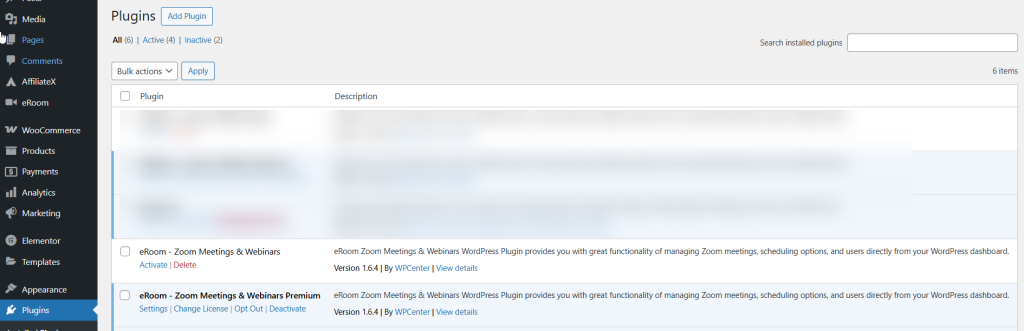
eRoom simplifies the management and sale of Zoom webinars directly from WordPress. First, you need to download eRoom and activate it.
Note: As you are about to sell Zoom webinars in WordPress with eRoom and WooCommerce, you should check the eRoom Pro pricing plans and get the best to start the configuration process.
In your WordPress dashboard, go to Plugins > Add New, then upload the eRoom plugin file. After installation, activate the plugin.
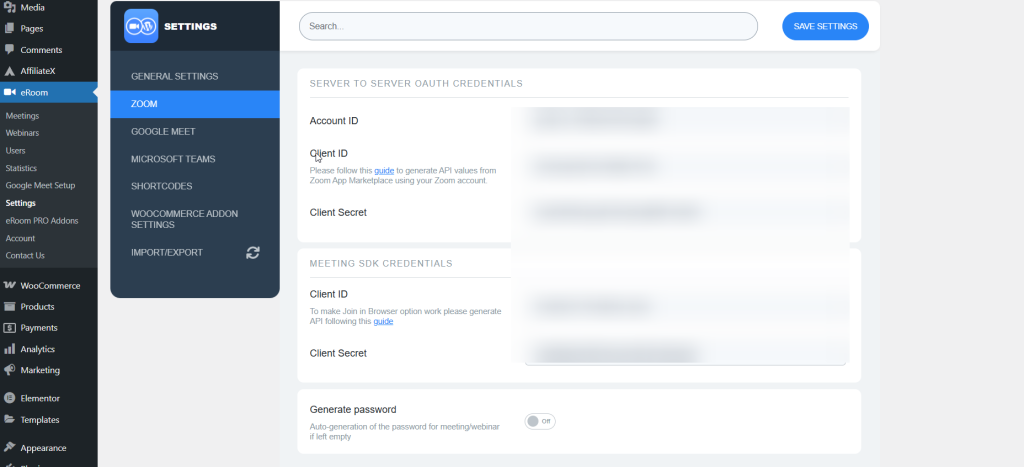
In eRoom> Settings > Zoom, add your Zoom Account ID, Client ID, Client Secret, and others to allow eRoom to create and manage your Zoom webinars from within WordPress.
Step 3: Set Up WooCommerce & Connect with eRoom to Sell Zoom Webinar
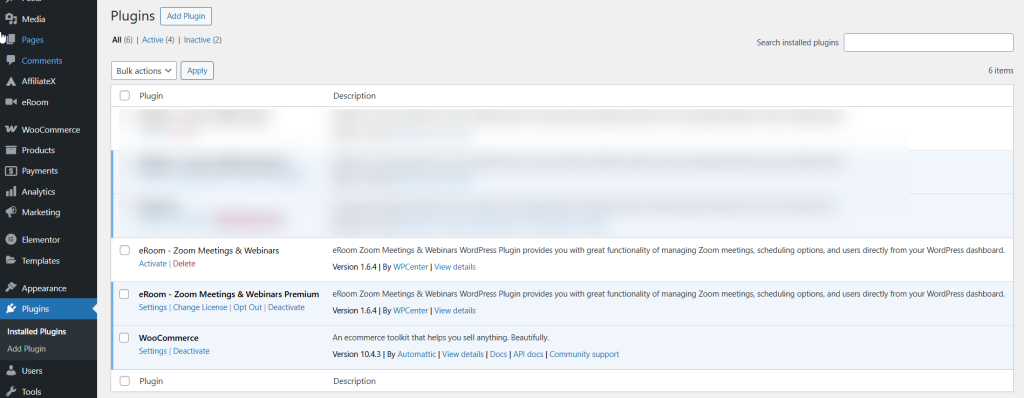
WooCommerce makes it easy to sell webinar tickets. If you don’t already have WooCommerce installed. Navigate to Plugins > Add New, search for “WooCommerce”, and click Install Now.
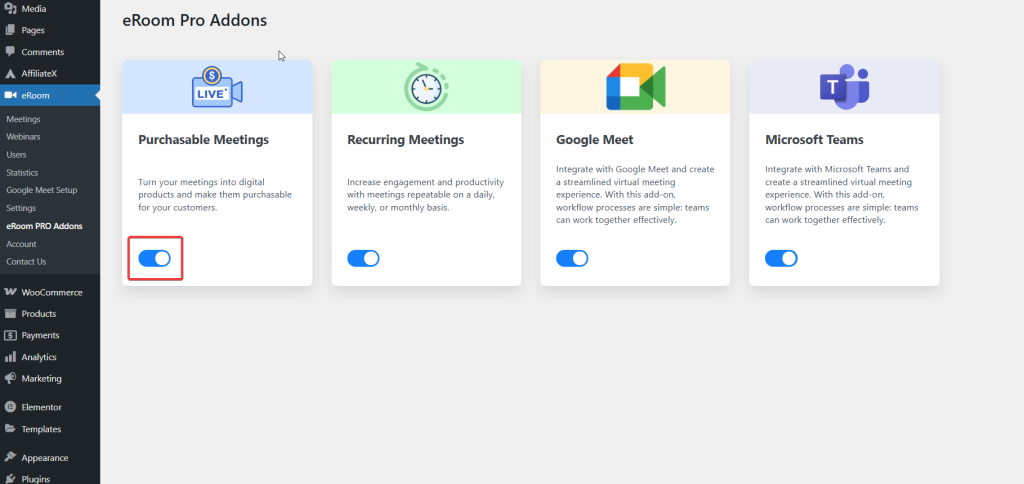
You have to check and activate the “Purchasable Meetings” addon in eRoom if it’s not already enabled by default after installing eRoom Pro. What to do is go to the eRoom Pro menu on your dashboard panel. On the eRoom Pro Addons page, you can check it and, if it’s not enabled, enable it.
Now, go to eRoom > Zoom Meetings > Add New. Create a new webinar, fill in all required information, such as the name, host, agenda, and start date, and save the changes. If you want, you can set up Zoom meetings from the Meetings option as needed.
Step 4: Create Webinar Products in WooCommerce
Once WooCommerce is set up, you can create products (in this case, webinar tickets) to sell. You should go to WooCommerce > Products > Add new. You have to give your webinar an image, a title, and write a compelling product description.
Just scroll to the Add New product page, open the General section, Product Data, and select Zoom/Google Meet conference from the drop-down menu. Now you need to set your webinar pricing to sell Zoom webinars in WordPress with eRoom and WooCommerce.
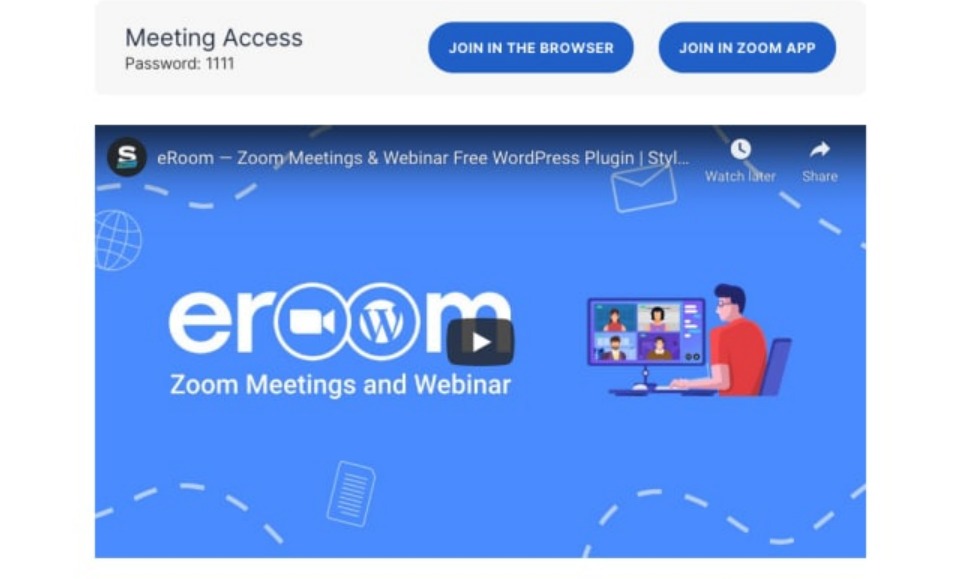
Afterwards, link the product to a specific meeting. Select the needed one in the Select Meeting field. You can also mark the Zoom webinar as complete. In this case, people can buy the recorded version. Just insert the embed code of the record file. To do that, you need to paste the embed code into the place “Meeting record embed code”:
This is how users can view the recorded source at any time after a purchase.
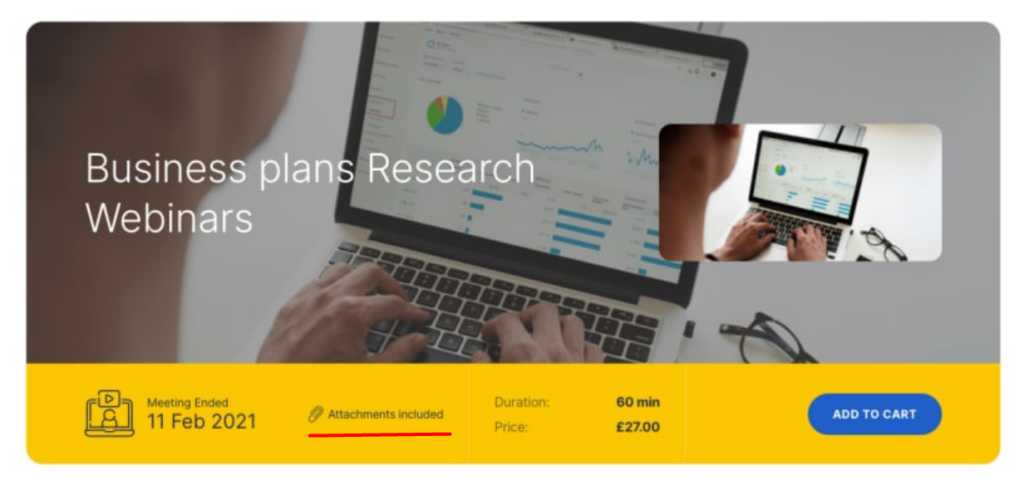
You can attach files to the product by clicking the downloadable button, and then you will be able to download the files. In the frontend view, you can see the attached files below the product description, and they will be displayed as shown in the picture.
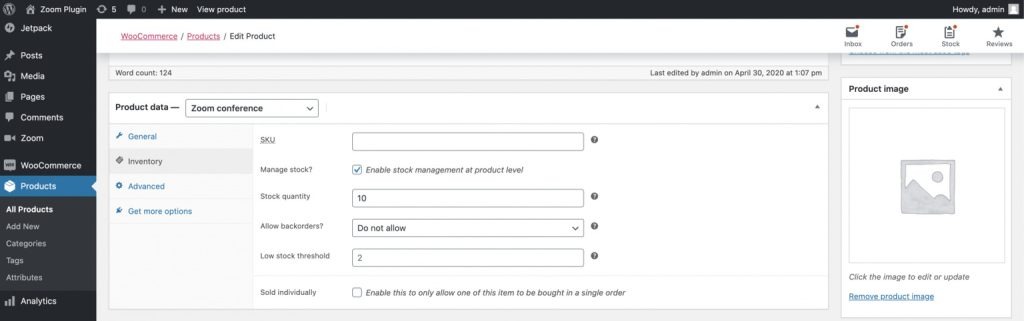
Other than that, in the Inventory section, you can manage stock as per your preferences.
Now your target audience can see that the Zoom webinar is available for purchase on your WordPress site. If you want to get more details, check out this doc to everything you need.
Now that you are all set, you can send participants an email reminder 10 minutes before the session starts, or your preferred number of minutes beforehand.
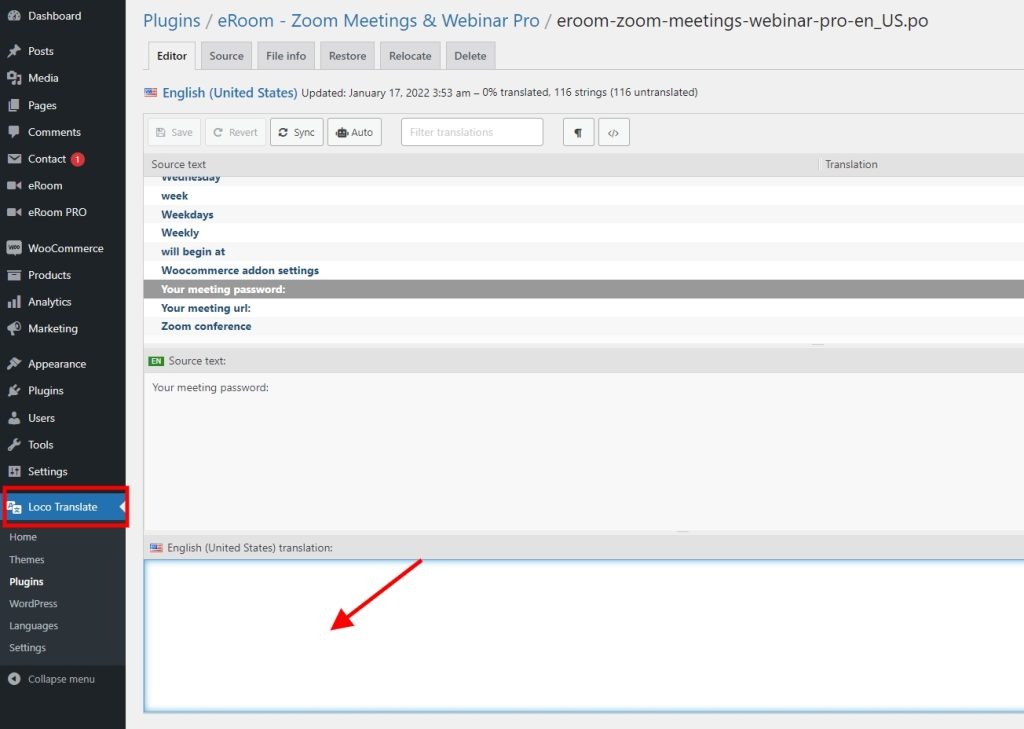
For this, you have to go to eRoom > Settings > WooCommerce Addon Settings, specify the time in the provided field, and your webinar audience will receive the reminder notification.
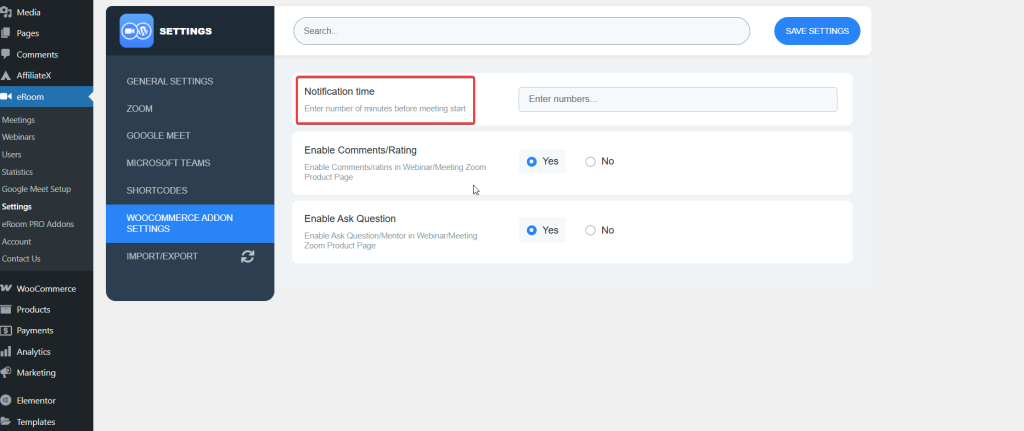
Moreover, if you need to edit the notification message according to your needs, you can easily do so by installing the Loco Translate plugin.
Step 7: Host and Deliver Your Webinar
On the day of your webinar, log into Zoom and host the session as usual. eRoom will send the webinar link and access instructions to your attendees automatically once they purchase a ticket.
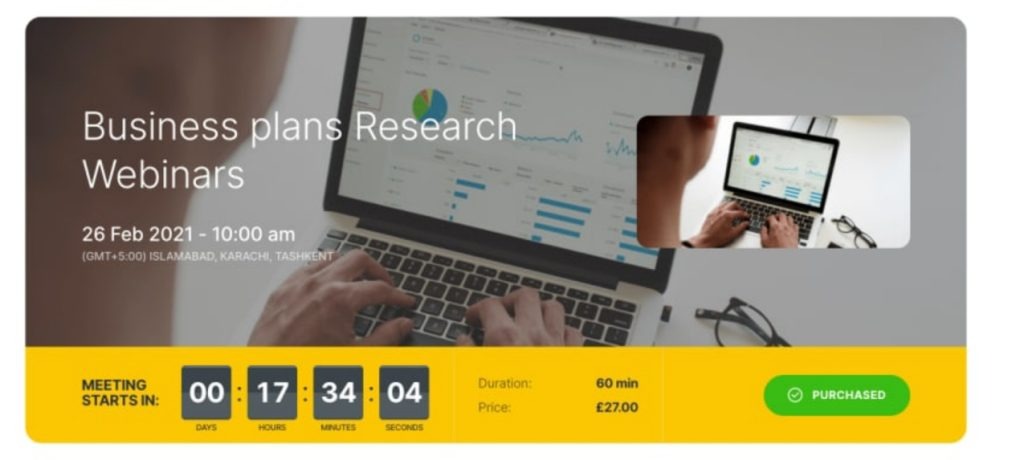
However, you can set recurring meetings by enabling the eRoom Recurring Meetings Add-on and configuring recurring webinar information in the eRoom Webinars settings. Check this eRoom recurring meeting documentation for more details.
Bonus: How to Promote & Sell Zoom Webinar Online & Earn Maximum
To effectively promote and sell webinars online, it’s crucial to focus on strategies that will attract and engage potential attendees. Here’s a breakdown of how to use key promotional channels:
Email Marketing
Start by utilizing your existing email list. Your subscribers are already familiar with your brand, so they are likely to be interested in your webinar. Send out an email with precise, concise details about the event, highlighting the key benefits. You can boost engagement by offering exclusive early-bird discounts or special bonuses to those who register early. A personal touch or a sense of urgency can also encourage people to act quickly.
Social Media
Social media is an excellent way to get the word out to a larger audience. Platforms like Facebook, LinkedIn, and Twitter allow you to share your webinar details with both your followers and beyond. Create engaging posts that not only provide essential details but also spark interest by explaining why people should attend. Use visuals, such as eye-catching graphics or short videos, to make the posts more engaging. Don’t forget to use relevant hashtags to expand your reach and encourage your followers to share the posts within their network.
Paid Advertising
To further expand your reach, consider using paid advertising. Platforms like Facebook and Google Ads allow you to target very specific audiences. For instance, if your webinar is about digital marketing, you can target users who are interested in online business, advertising, or entrepreneurship. These ads can drive more targeted traffic to your webinar registration page, helping you convert visitors into attendees. Invest in ads strategically designed to highlight the webinar’s key value, ensuring your audience understands why they shouldn’t miss out.
By integrating these approaches, such as email marketing, social media promotion, and paid ads, you can effectively generate interest and ensure your webinar attracts the maximum number of attendees. It can ultimately lead to higher sales and greater engagement.
Ready to Start Selling Zoom Webinars in WordPress?
To sell Zoom webinars in WordPress with eRoom and WooCommerce gives you complete control over your online events. You handle payments, build your email list, and create a professional experience for your attendees, all from your own website.
You just need to follow the simple configuration steps mentioned above and start with a free test webinar to practice. Then launch your first paid event. You will be surprised how smooth the process becomes once you have done it a few times with eRoom.
Need more help?
- Test everything before your first real webinar
- Check the eRoom documentation for advanced features
Good luck with your Zoom webinars with eRoom!
FAQs:
Yes, you will need eRoom Pro to sell Zoom webinars in WordPress with WooCommerce.
You just need to install and activate WooCommerce, and you don’t need to get WooCommerce Pro. eRoom Pro will help you to manage, configure, and sell Zoom webinars in WordPress.
After purchase, customers will automatically receive an email with the Zoom link and access instructions.