Why eRoom is the Best Zoom Meeting Plugin for WordPress
Virtual meetings now play a key role in how we work, learn, and stay connected. With remote work and online education on the rise, more people need reliable video conferencing tools. WordPress powers over 43% of all websites, and Zoom leads the video conferencing market with 46% of global customers.
If you own a WordPress site and want to add virtual meetings, it can be hard to find a plugin that is powerful, easy to use, and affordable. eRoom stands out as the top WordPress Zoom plugin for these reasons.
This guide explains why eRoom is the best Zoom meeting plugin for WordPress. We will examine its features, what sets it apart from competitors, real-world use cases, and how it can turn your website into a complete virtual meeting platform.
What are WordPress Zoom Plugins?
WordPress Zoom plugin is a specialized solution that connects your WordPress website directly with Zoom’s video conferencing platform. These plugins use the Zoom API to bring powerful video conferencing capabilities directly into your WordPress dashboard, eliminating the need to switch between platforms.
With a good Zoom plugin, you can create, schedule, manage, and even sell meetings right from your WordPress admin panel. Visitors can join meetings without leaving your site, ensuring a smooth, professional experience.
Why You Need a Zoom Meeting Plugin for WordPress
A Zoom plugin turns your WordPress site into a strong communication hub. You can automate meeting creation, manage registrations on your site, and provide users with a seamless experience without manual links or redirects. Here are some key benefits:
- Centralized Management: Control all your meetings, webinars, and recordings from a single WordPress dashboard, saving time and reducing complexity.
- Enhanced User Experience: Visitors can access meeting details and join sessions directly on your website without leaving it.
- Monetization Opportunities: Transform your expertise into revenue by selling access to webinars, courses, and consultation sessions.
- Professional Presentation: Maintain brand consistency by embedding meetings within your professionally designed website.
- Time-Saving Automation: Automate meeting reminders, calendar synchronization, and participant management.
What Makes eRoom Stand Out
eRoom is more than just a Zoom integration plugin. It’s built to provide users with a complete, easy-to-use solution without requiring additional plugins or complex setup.
You can choose between the free and Pro versions of the plugin. The free version offers strong features for most users. In contrast, the Pro version adds advanced options, including integrations with Google Meet and Microsoft Teams, making eRoom a reliable multi-platform tool.
eRoom’s Unique Value Proposition
Here are some reasons why eRoom stands out from other plugins and why it could be the right choice for you.
- Multi-Platform Integration: Unlike plugins limited to Zoom alone, eRoom Pro supports Zoom, Google Meet, and Microsoft Teams from a single dashboard.
- Seamless WordPress Integration: Built specifically for WordPress, eRoom integrates naturally with your existing theme and plugins.
- No Plugin Overload: eRoom provides comprehensive functionality without requiring multiple complementary plugins.
- Versatile Applications: Suitable for education, business, coaching, healthcare, and numerous other industries.
Top Features That Make eRoom the Best Choice
eRoom uses the Zoom API to connect directly with Zoom. You can manage meetings, webinars, and users right from your WordPress dashboard. The plugin works with all Zoom account types, but the number of hosts and participants varies by plan.
Key Capabilities Include:
• Create and schedule Zoom meetings and webinars directly from WordPress
• Support for webinars with up to 10,000 participants
• Participants can join via browser or the Zoom app
• Manage users and hosts from your WordPress dashboard
• Access to all major Zoom features, including screen sharing, breakout rooms, and chat
eRoom WooCommerce Integration for Monetization
A key feature of eRoom is its seamless integration with WooCommerce, WordPress’s top e-commerce platform. This lets you quickly turn meetings and webinars into products people can buy.
How it works
1. Create your Zoom meeting or webinar in eRoom
2. Add it as a new WooCommerce product
3. Set your price and payment options
4. Customers purchase access and automatically receive joining credentials
Benefits of eRoom WooCommerce integration
• Accept payments through multiple gateways (PayPal, Stripe, credit cards, etc.)
• Perfect for selling online courses, webinars, workshops, and consultation sessions
• No additional tools or complex setup required
• Automated access management based on purchase status
This makes eRoom especially useful for educators, coaches, consultants, and anyone looking to earn income by offering virtual sessions.
Calendar Synchronization
eRoom helps you keep track of meetings with full calendar integration. You can sync meetings with iCal and Google Calendar, so your schedule is always available on any device.
Features Include:
• One-click export to iCal format
• Direct Google Calendar synchronization
• Automatic reminder notifications
• Perfect for professionals managing multiple appointments
Flexible Display Options
eRoom offers several options for displaying your meetings on your WordPress site to match your design needs.
Display Methods
• Shortcodes: Embed meetings on any page or post with simple shortcode syntax
• Page Builder Compatibility: Works seamlessly with Elementor, Gutenberg, and other popular page builders
• Customizable Layouts: Adjust the appearance to match your website’s design
• Widget Support: Add meetings to sidebars and widget areas
Multi-Platform Support (Pro Version)
eRoom Pro takes integration further by allowing you to manage multiple video conferencing platforms in one place.
Supported Platforms
• Zoom: Complete meeting and webinar management
• Google Meet: Schedule and conduct Google Meet sessions without switching tabs
• Microsoft Teams: Bring Teams meetings directly to your website
This multi-platform capability gives you ultimate flexibility, allowing you to use the best platform for each specific need without managing multiple plugins.
User-Friendly Interface
eRoom is designed with user experience in mind. The intuitive admin panel makes it easy to create and manage meetings, even for users with no technical expertise.
Interface Highlights
• Clean, organized dashboard
• Step-by-step setup wizard
• Clear documentation and tutorials
• No coding knowledge required
Recording and Replay Features
With eRoom, you can save and manage meeting recordings so your content stays available long after the live session ends.
Recording Capabilities
• Automatically save Zoom recordings
• Make recordings available for download or streaming
• Sell access to recorded content as WooCommerce products
• Perfect for creating online course libraries
How eRoom Compares to Competitors
There are many WordPress Zoom plugins, but eRoom stands out as the best choice. Here’s how it compares to other options.
eRoom vs. Video Conferencing with Zoom
Video Conferencing with Zoom is one of the most popular alternatives, with over 10,000 active installations. While it’s a solid plugin, eRoom offers several advantages:
| Feature | eRoom | Video Conferencing with Zoom |
|---|---|---|
| Multi-Platform Support | Zoom, Google Meet, Teams | Zoom Only |
| Calendar Integration | iCal & Google Calendar | Limited |
| WooCommerce Integration | Built-in | Requires paid add-on |
| Ease of Setup | Intuitive, user-friendly | Requires technical setup |
eRoom’s built-in WooCommerce integration and support for multiple platforms make it a top pick, especially if you want to sell your content or use multiple conferencing tools.
Why eRoom Wins Overall
After looking at all the options, eRoom comes out on top for several good reasons:
• Best Value: Superior features at competitive pricing, with essential functionality available in the free version
• Complete Solution: Eliminates the need for multiple plugins with its comprehensive feature set
• Future-Proof: Multi-platform support ensures compatibility as your needs evolve
• Active Development: Regular updates and a responsive support team
• Proven Track Record: Thousands of satisfied users across various industries
Real-World Use Cases for eRoom
This section shows how eRoom can turn your WordPress site into an interactive video conferencing hub. We’ll cover real-world uses in education, healthcare, and professional services, and how to get the most from your Zoom integration.
Online Education and E-Learning
eRoom works exceptionally well for schools and online course creators. Teachers can set up virtual classrooms, run live webinars, and offer one-on-one tutoring, all from their WordPress site.
Educational applications
• Live virtual classes with recording capabilities for students who miss sessions
• Paid webinar series for specialized topics
• One-on-one tutoring appointments with calendar integration
• Integration with LMS themes like MasterStudy for complete learning management
Business and Corporate Applications
Businesses can use eRoom for team communication, client meetings, and the delivery of professional services.
Business use cases
• Remote team meetings and collaboration sessions
• Client consultation appointments
• Product demonstrations and sales presentations
• Employee training sessions and onboarding programs
Coaching and Consulting
Coaches and consultants can grow their practices by using eRoom’s tools to monetize their sessions.
Professional applications
• Paid one-on-one coaching sessions
• Group coaching programs with tiered pricing
• Membership-based exclusive content
• Workshop series and masterclasses
Healthcare and Wellness
Healthcare and wellness professionals can use eRoom to offer secure virtual appointments and group sessions.
Healthcare applications
• Telemedicine consultations
• Virtual fitness classes and personal training
• Therapy and counselling sessions
• Wellness workshops and meditation classes
How to Get Started with eRoom
Now that you know what eRoom offers, here are the steps to get started with this top WordPress Zoom meeting plugin.
eRoom Installation Process
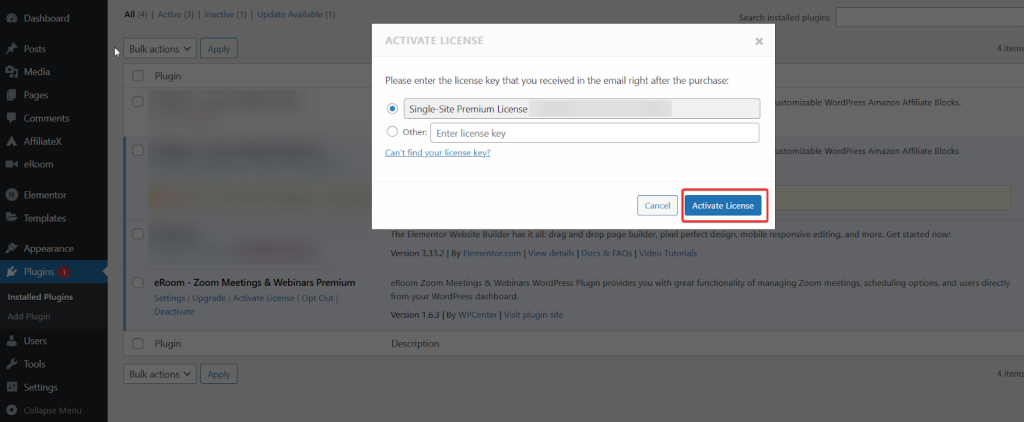
Installing eRoom is simple and only takes a few minutes:
- Navigate to Plugins: In your WordPress dashboard, go to Plugins > Add New
- Search for eRoom: Use the search bar to find eRoom Zoom Meetings Webinar.
- Install and Activate: Click Install Now, then Activate once installation completes
- Configure Settings: Access eRoom settings to begin connecting your Zoom account
eRoom Initial Setup and Configuration
To use eRoom, connect it to your Zoom account with the Zoom API. You’ll need to create a Server-to-Server OAuth app in Zoom, since the older JWT method is no longer supported.
Setup steps:
- Visit the Zoom Marketplace and click Develop > Build App
- Choose Server-to-Server OAuth as your app type
- Fill in your app information and generate API credentials
- Copy your Account ID, Client ID, and Client Secret
- Paste these credentials into eRoom’s settings page and save
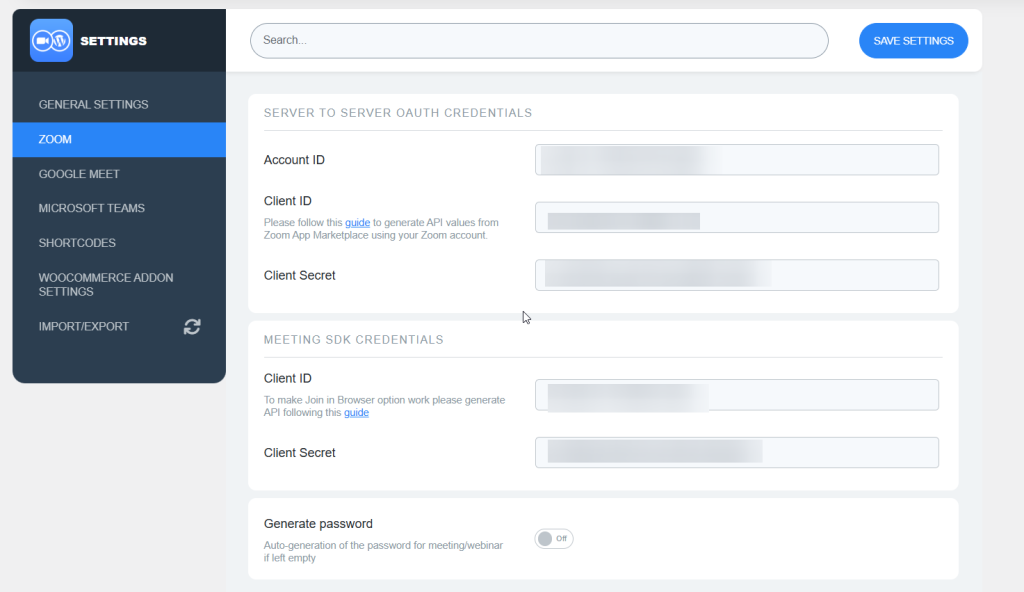
The whole setup usually takes 10 to 15 minutes. After that, you’ll have full access to all of eRoom’s features.
Creating Your First Meeting with eRoom
After setup, creating a meeting is easy:
- Navigate to Zoom Meetings > Add New in your WordPress dashboard
- Enter your meeting details (title, date, time, description)
- Configure meeting settings (password protection, waiting room, etc.)
- Publish the meeting
- Use the provided shortcode to embed the meeting on any page
Setting Up Purchasable Meetings with eRoom
To monetize your meetings, WooCommerce eRoom comes with the Purchasable Meetings option.
- Ensure WooCommerce is installed and activated
- Create your meeting in eRoom as usual
- Go to Products > Add New in WooCommerce
- Link the product to your eRoom meeting
- Set your price and payment options
- Publish the product – customers can now purchase access

eRoom Pricing and Plans Analysis
This section will help you understand eRoom’s pricing and plans so that you can choose the best Zoom plugin for your WordPress site.
Free Version Features
The free version of eRoom is strong and covers most basic needs:
• Complete Zoom integration
• Meeting and webinar management
• Shortcode support
• Basic calendar synchronization
• Page builder compatibility
• Community support
Value for Money Analysis
Unlike other plugins that charge a lot for WooCommerce integration, eRoom’s Pro plan is very affordable. If you sell webinars or consultations, the Pro version often pays for itself after just a few sales. You can review the monthly and lifetime pricing options in the linked content and start using eRoom right away.
Tips for Maximizing eRoom’s Potential
Meeting Management Best Practices
• Schedule Strategically: Choose times that work for your target audience across different time zones
• Use Waiting Rooms: Control when participants join and create a more professional experience
• Enable Recordings: Create valuable content that can be repurposed for future use
• Test Before Live Sessions: Always test your setup before essential meetings
Monetization Strategies
• Tiered Pricing: Offer different access levels (basic webinar, VIP with Q&A, etc.)
• Bundle Offers: Create packages combining multiple sessions at a discount
• Early Bird Discounts: Encourage early registration with special pricing
• Membership Models: Combine with membership plugins for recurring revenue
Performance Optimization
• Quality Hosting: Ensure your WordPress hosting can handle traffic spikes during live sessions
• Caching: Use caching plugins, but exclude meeting pages for real-time updates
• Mobile Optimization: Test your meeting pages on mobile devices
• Regular Updates: Keep eRoom, WordPress, and all plugins updated
Choose eRoom: The Best Zoom Meeting Plugin for WordPress
With so many WordPress Zoom plugins out there, eRoom stands out as the best choice. Its wide range of features, easy-to-use interface, smooth WooCommerce integration, and support for multiple platforms make it the top Zoom meeting plugin for WordPress.
Whether you teach online, run client meetings, coach others, or offer virtual healthcare, eRoom gives you the tools you need to succeed online.
The free version has enough features for most people to get started. The Pro version adds advanced tools at a reasonable price, turning your WordPress site into a complete virtual meeting platform. With support for Zoom, Google Meet, and Microsoft Teams, eRoom is a wise, future-ready choice.
Frequently Asked Questions
Yes, you must be registered with Zoom. The number of hosts and participants available depends on your Zoom plan. Basic free plans support up to 100 participants, while Pro and higher plans offer larger capacity.
Yes, eRoom is compatible with Elementor, Gutenberg, and most popular WordPress page builders through its shortcode system.
Recordings are stored in your Zoom account. You can make them available for download or streaming on your WordPress site, and even sell access to them as WooCommerce products.
eRoom itself doesn’t limit the number of meetings. Limitations depend on your Zoom account plan and WordPress hosting capabilities.
Common Issues and Solutions
Ensure you’ve migrated from JWT to Server-to-Server OAuth (Zoom deprecated JWT in June 2023). Verify that all API credentials are entered correctly and that your Zoom app has the necessary permissions.
Check the time zone settings in both WordPress and Zoom. Ensure proper Google Calendar integration if using that feature.
Verify WooCommerce is properly installed and activated. Check product linking and ensure the purchasable meetings add-on is enabled in the Pro version.