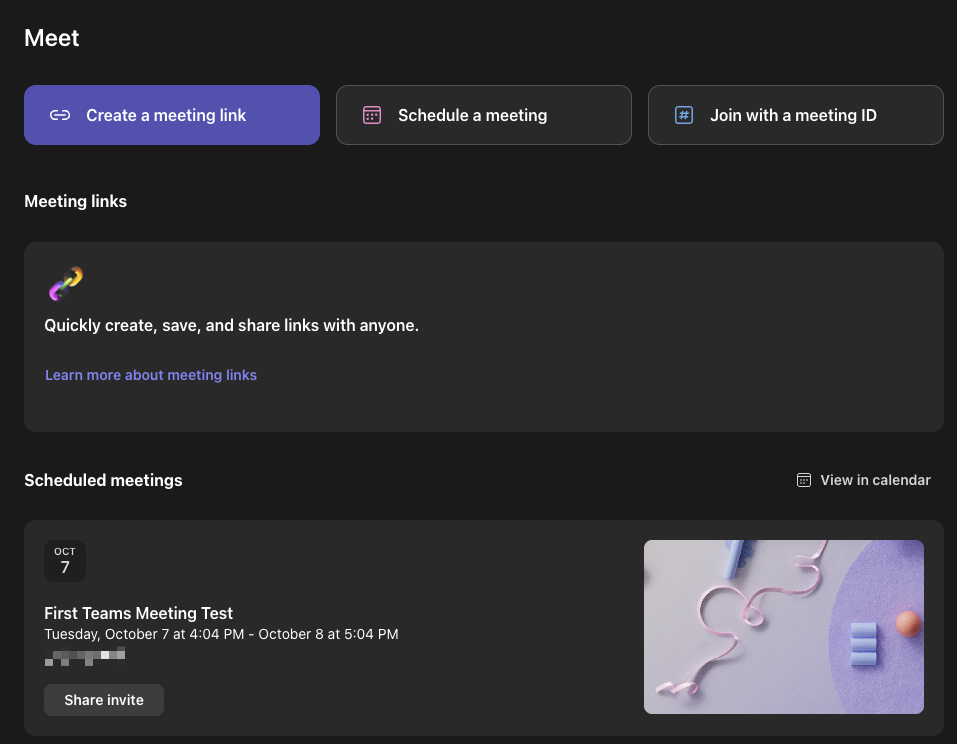
This guide will walk you through the process of setting up Microsoft Teams integration for the eRoom plugin.
Prerequisites #
- Active Microsoft account (personal, work, or school account)
- Access to Azure Portal (https://portal.azure.com)
- eRoom plugin installed and activated
1. Create Azure App #
Please go to Azure Portal https://portal.azure.com and sign in with your Microsoft account. After you login, you will see Azure Portal.
Please search App Registrations: https://portal.azure.com/#view/Microsoft_AAD_RegisteredApps/ApplicationsListBlade
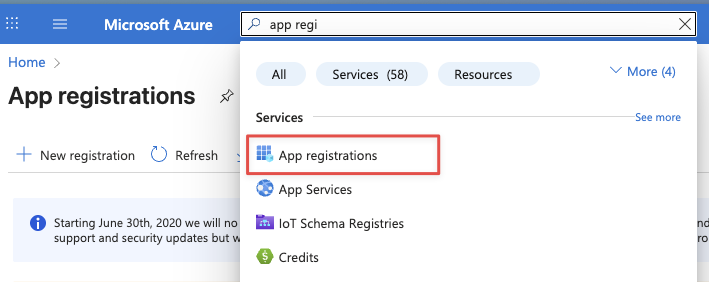
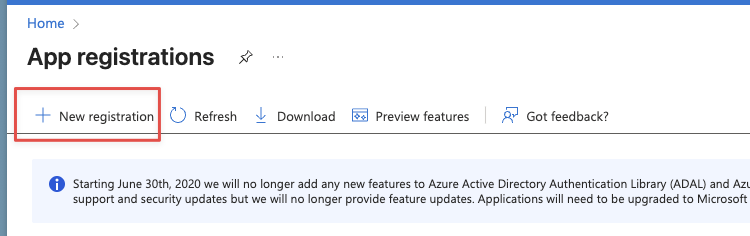
Click New registration
If you see this;
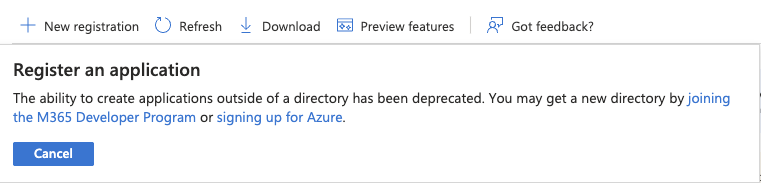
That means you need to join to Developer program, or sign up to Azure so you can use Microsoft Teams API. If you don’t have access to Developer Program we can suggest you to signiup for Azure as it has their own pay as you go policy.
When you have proper Azure account, go to App Registrations and click new registration button.
2. Register App on Azure #
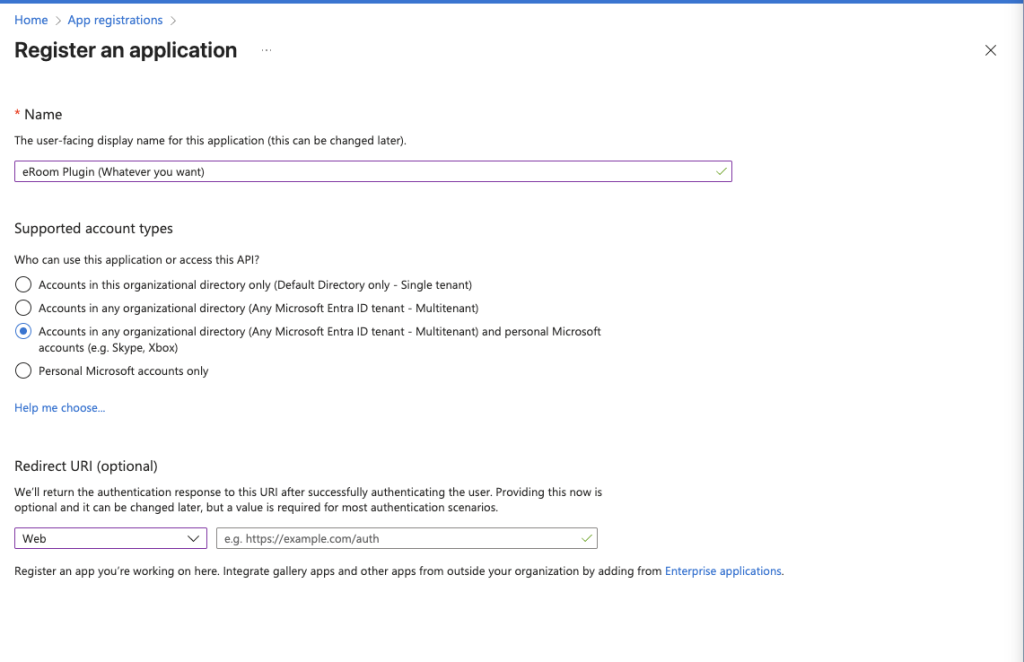
Name: It will be your name, you can call it whatever you want
Support Account Types: Please select Accounts in any organizational directory (Any Microsoft Entra ID tenant – Multitenant) and personal Microsoft accounts (e.g. Skype, Xbox)
Redirect URI: {your domain will be here}/eroom-msteams-oauth/ , so you should put your domain name and /eroom-msteams-oauth/ so it will be like https://yoursite.com/eroom-msteams-oauth/
3. Create Certificate & Secrets #
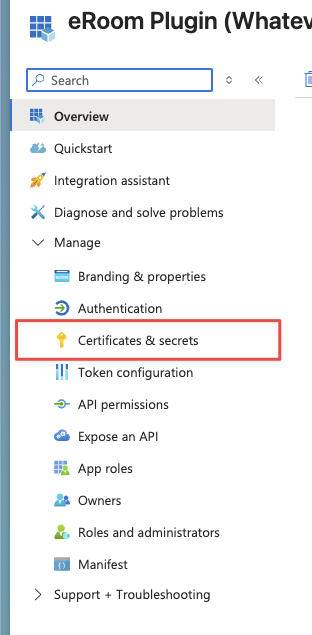
Click Certificates & secrets section on the sidebar
Click New client secret button and then write something for description, choose the expiration period
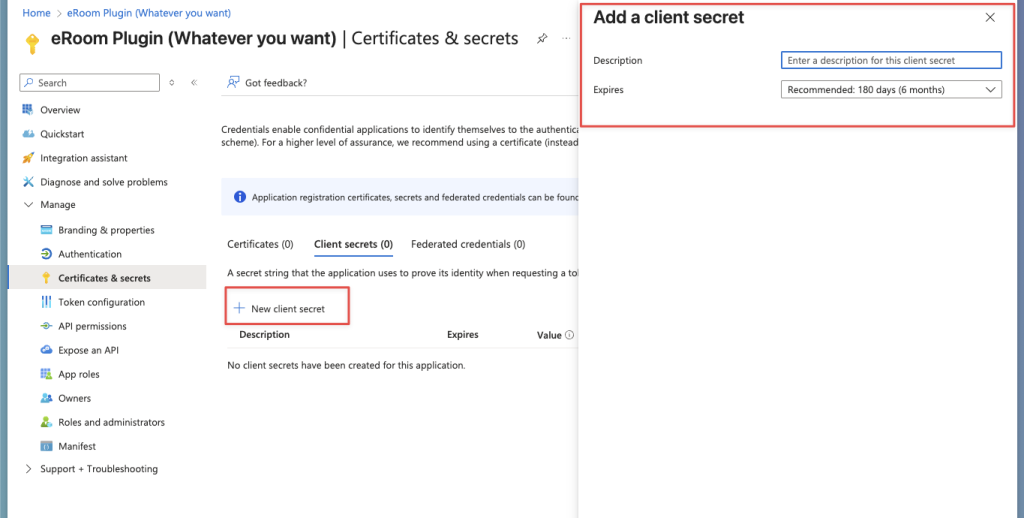
And then you will get a secret value, copy the **Value** (not the Secret ID) immediately, it won’t be shown again! Please note it somewhere because it will not gonna show again, we will need it in the admin side. Also be careful because we need Value not Secret ID.

4. Configure API Permissions #
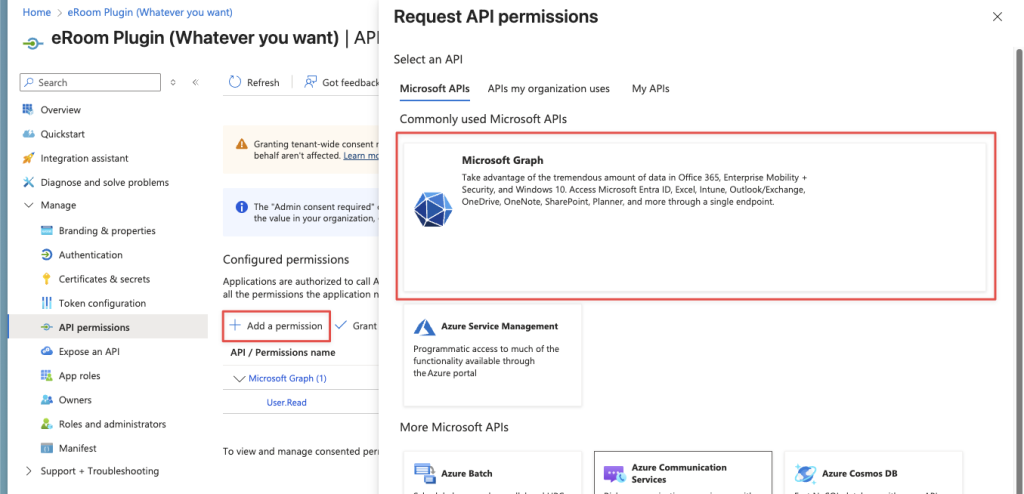
In the left sidebar, go to API permissions
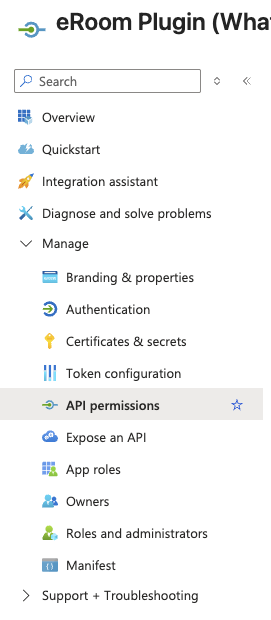
Click Add a permission
Click Microsoft Graph
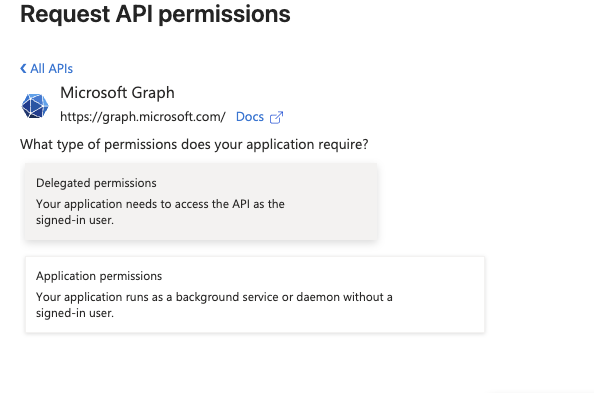
Click Delegated permissions
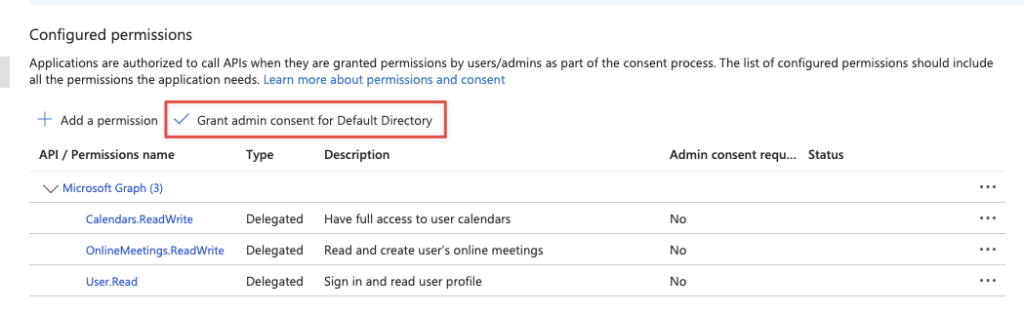
Add the following permissions:
– Calendars.ReadWrite – Create, read, update, and delete user calendars
– OnlineMeetings.ReadWrite – Create and manage online meetings
– User.Read – Sign in and read user profile
Click Add Permissions
After that you will see the permissions and then click Grant admin consent for Default Directory and click Yes
5. Configure eRoom Plugin #
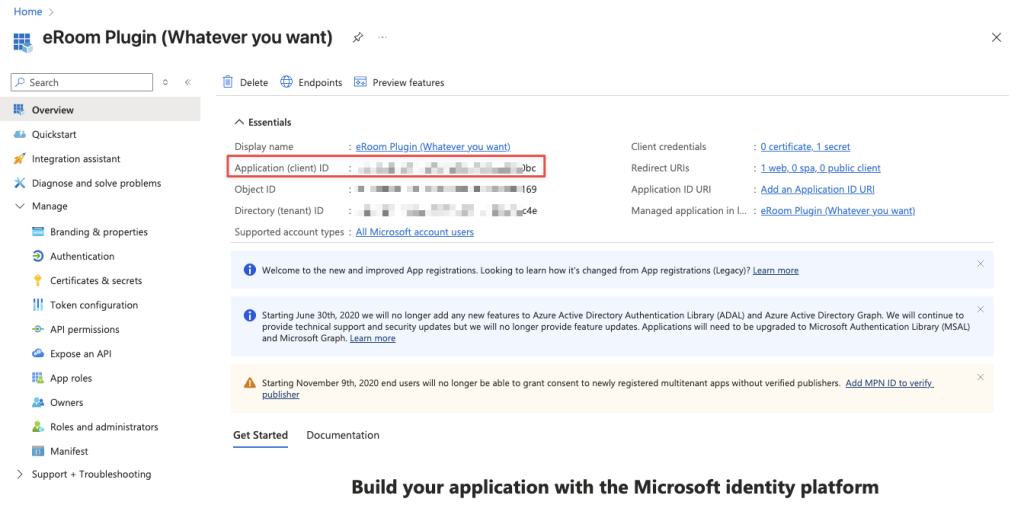
First of all please go to Overview section and take a not that Client ID as well.
Go to your WordPress admin dashboard
Navigate to eRoom -> Settings
Go to Microsoft Teams tab and you will see Authorization Required warning there.
First of all we need to enter Client ID and Secret that we took note.
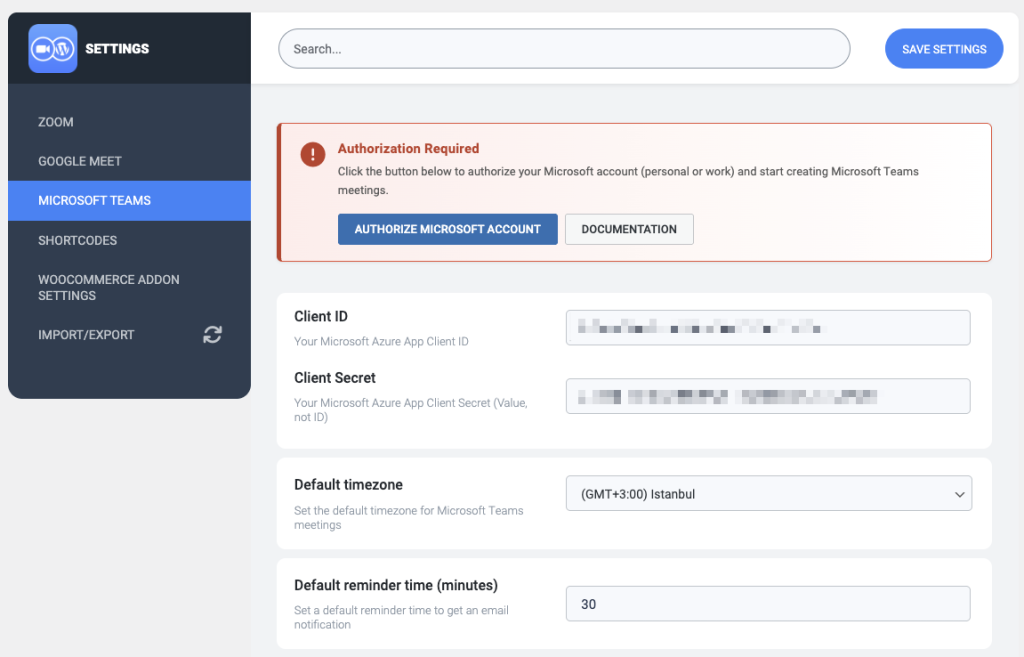
Click save settings, page will refresh and you will see your client id and secret saved succesfully.
After saving the credentials, click the Authorize Microsoft Account button
You’ll be redirected to Microsoft’s login page
Sign in with your Microsoft account
Review and accept the requested permissions
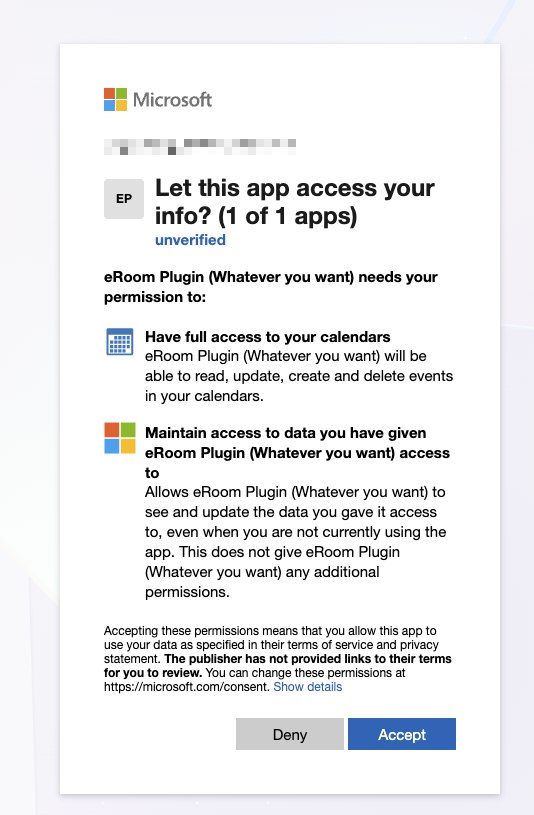
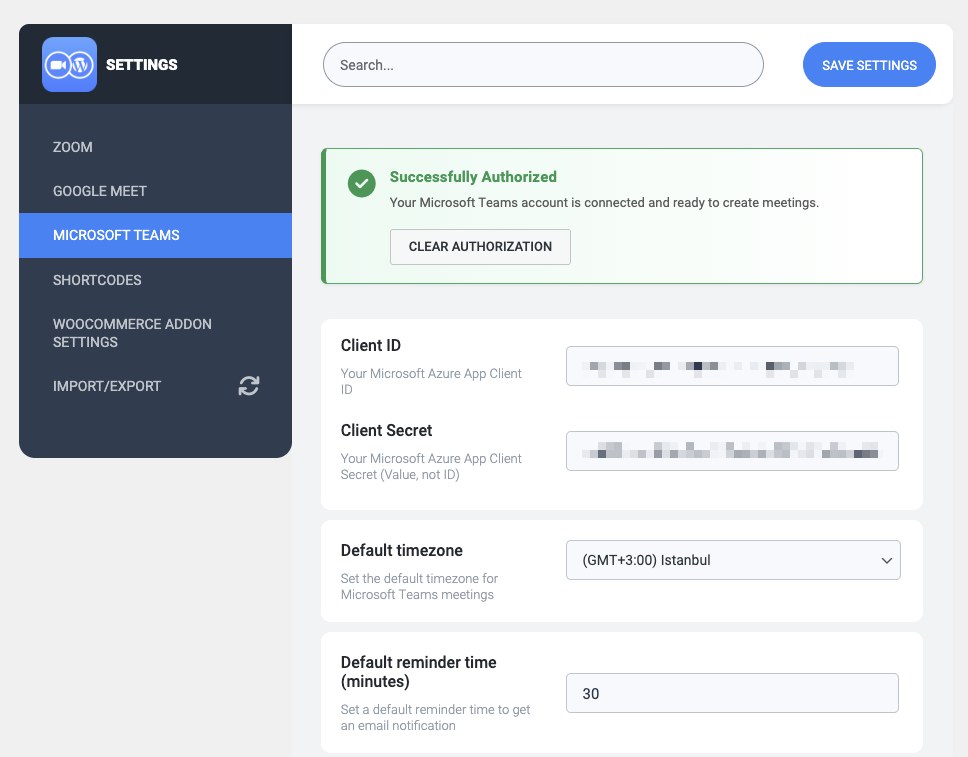
After you accept it, it will redirect you to WordPress Admin Dashboard, if you go to Microsoft Teams tab again, you will see it is showing a Successfully Authorized notification.
6. Create Your First Meeting #
Go to Eroom -> Meetings
Click Add New
Choose Microsoft Teams as Provider
Set all the details and publish the Meeting
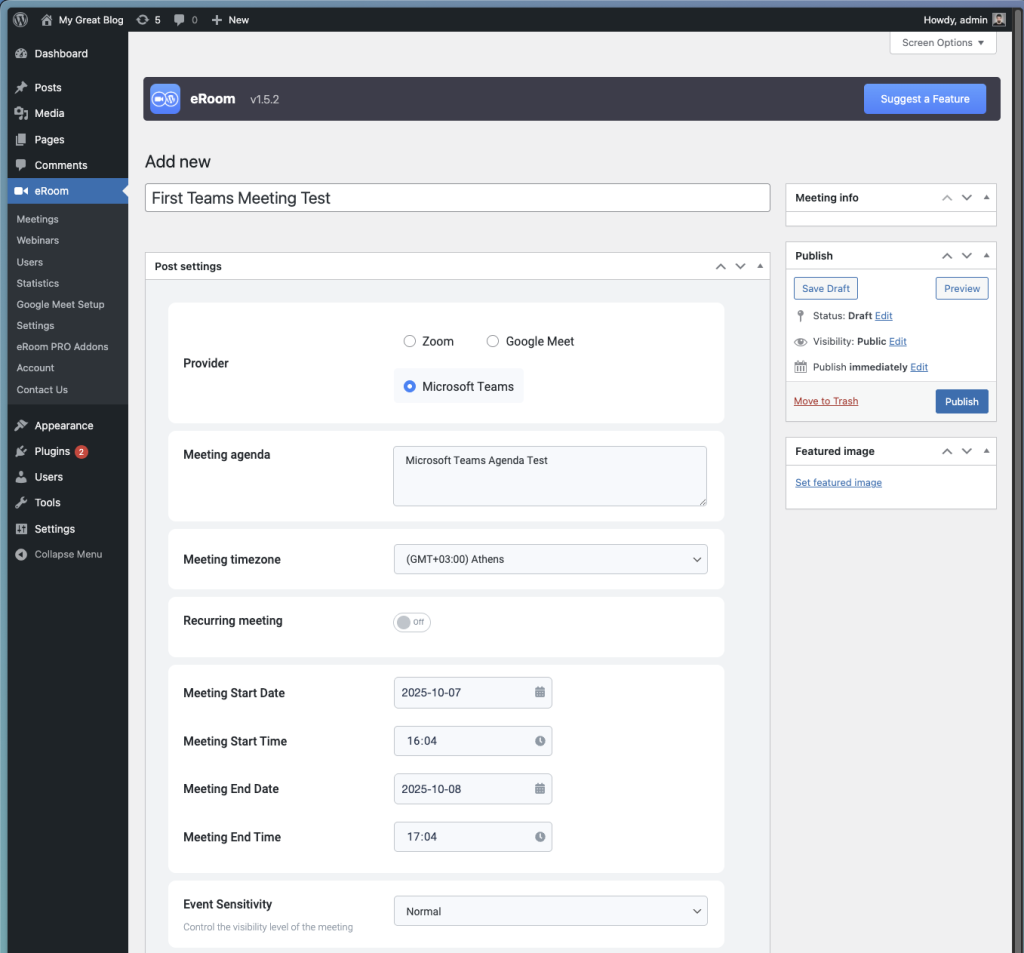
You will see it is immediately created in your Microsoft Teams account.