
Skip to content

Happy New Year

New Year Special!

FLAT

40%

OFF

Ends in

Days
Hours
Get Discount!
  • Pricing
  • Features
  • Docs
  • Blog
  • My Account
  • Contact
Get Started

Getting Started

  • Install and Activate eRoom Free & eRoom Pro
  • System Requirements
  • Configuring the plugin
  • License Activation
  • License Upgrading
  • Meeting Reports
  • Meetings Grid
  • How to Add Meetings to Page
  • How to Add Meetings
  • How to Add New Users

Zoom Integration

  • How to Obtain APIs
  • Webinars
  • Migration Wizard

Google Meet Integration

  • Google Meet Addon

Microsoft Teams Integration

  • Microsoft Team Integration

Purchasable Meeting

  • Purchasable Meetings Addon

Recurring Meeting

  • Recurring Meetings Addon

Hooks

  • Filter: eroom_date_timezone_display
View Categories
  • Documentation
  • Getting Started
  • How to Add Meetings to Page

How to Add Meetings to Page

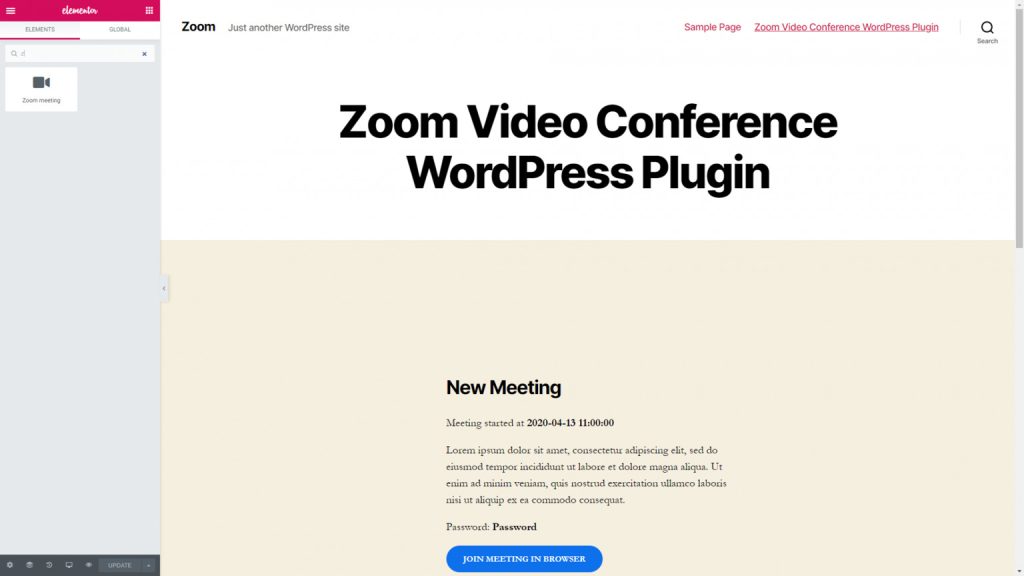
You can also use the Zoom meeting element available in Elementor page builder. Just select it from the list of elements, and choose your meeting as a content.
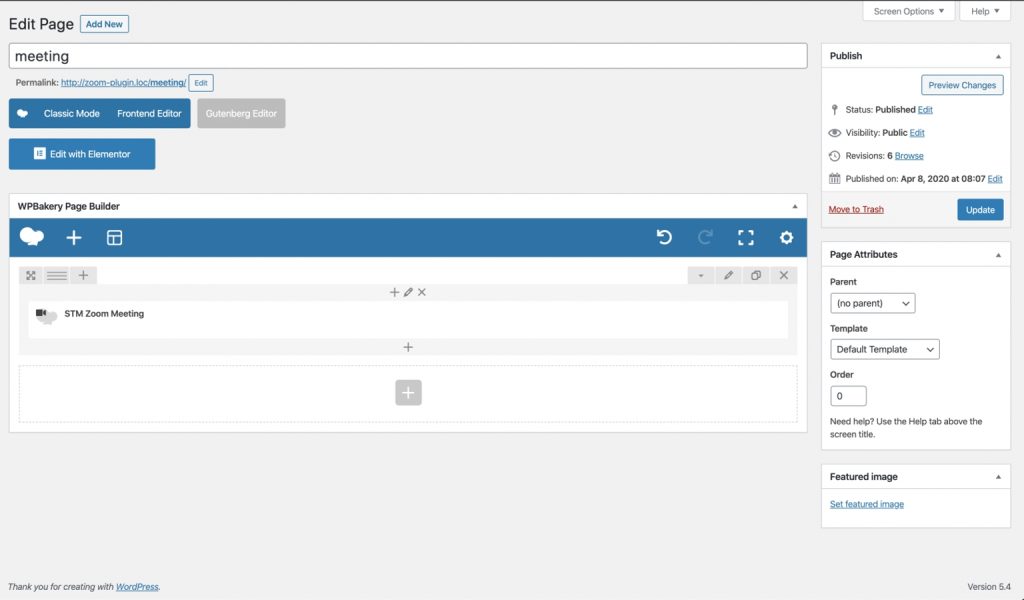
You can also use the element from the WPBakery Page Builder to add the meeting to the page. Just click on the Plus icon and select the STM Zoom Meetings element under the STM tab.
What are your Feelings

  • Happy
  • Normal
  • Sad

Share This Article :

  • Facebook
  • X
  • LinkedIn
  • Pinterest
Meetings GridHow to Add Meetings

Sell Zoom or Google Meet sessions directly on WordPress with eRoom. Manage, monetize, and embed meetings with ease!

Resources
Blog
Documentation
Support
Get in touch
  • support@nocatwp.com

© eRoom WordPress Plugin. All Rights Reserved.

  • Terms of Service
  • Privacy Policy